The Stream Targets feature in Wowza Streaming Engine™ media server software allows you to send live streams to widely distributed destinations. For example, you can send a live stream from Wowza Streaming Engine to a CDN of your choice, such as Akamai. This allows you to use the CDN's edge network to deliver the stream to viewers.
This article explains how to set up Wowza Streaming Engine and Akamai so that you can send live streams to the Akamai HD network for distributed delivery. If you're ingesting a source stream in multiple bitrates or transcoding in Wowza Streaming Engine and want to send an adaptive bitrate set of streams to Akamai, you can group the streams for delivery to Akamai.
- Wowza Streaming Engine 4.2 or later is required to use the Stream Targets feature to send HLS and RTMP streams to the Akamai HD network. In earlier versions of Wowza Streaming Engine, you must use the Push Publishing module to send live streams to CDNs for distributed delivery.
- Wowza Streaming Engine 4.6.0.03 or later is required to send MPEG-DASH streams to the Akamai HD network.
Configure Akamai to receive and distribute the stream
Before you start, make sure you have an Akamai Media Services Live (MSL) account that's provisioned and configured to support the type of live streaming you want to use with Wowza Streaming Engine: HLS ingest, MPEG-DASH ingest, or Stream Packaging (for RTMP ingest, available in MSL 3 only). To get an Akamai account or for help with live stream provisioning, contact Akamai sales or support.
When your Akamai account is ready, create a stream to receive the source stream from Wowza Streaming Engine and deliver it for final viewing.
Note: Refer to the Akamai documentation if you need additional help with configuring its service to ingest streams.
Create a stream in MSL 4
- Log in to Akamai Luna Control Center. Click the menu (≡). and then, in Your Services, Media, click Media Services Live.
- On the Media Services Live page, click the Add Stream button in the upper-right corner.
- On the Set up ingest for this stream page, select settings that work with your stream target configuration. The Input Format you select depends on whether you plan to send an HLS or MPEG-DASH stream from the Wowza Streaming Engine application.
Notes:
- You must work with Akamai to enable CP codes that support the HTTP protocols (HLS and/or MPEG-DASH) you want to use.
- Akamai MSL 4 doesn't currently support RTMP ingest.
- The CMAF input format option in Akamai MSL 4 isn't compatible with the current Wowza Streaming Engine CMAF feature implementation.
- Wowza Streaming Engine doesn't currently support Akamai MSL 4 Ingest Acceleration.
- Select the remaining settings for your Akamai stream. Refer to the Akamai Media Services Live 4.x User Guide topic Set up Ingest for the stream for more information.
- After you've completed your stream configuration, verify it. See the Akamai Media Services Live 4.x User Guide topic Review a summary of your settings article.
- Click Create to configure a stream with the specified settings.
- After Akamai provisions the stream, view its details by clicking the stream name on the Media Services Live page in Luna Control Center. You need this information when you create the live application in Wowza Streaming Engine that sends the stream to the Akamai destination.
Create a stream in MSL 3
- Log in to Akamai Luna Control Center. Click the menu (≡), and then, in Your Services, Media, Other Media services, click Legacy Media Services Live.
- On the Media Services Live page, in the Live Configurations tab, click the Add Configuration button in the upper-right corner.
- Refer to the following Akamai documentation to make selections on the Add Live Configuration page:
- For the Stream Packaging (RTMP Ingest/HLS output) product, see the Create a Configuration topic in the Akamai Media Services Live Stream Packaging User Guide.
- For the HLS/DASH Ingest product, see the Create a Configuration topic in the Media Services Live HLS and DASH Ingest User's Guide v3.2.
-
Note: You must work with Akamai to enable CP codes that support the HTTP protocols (HLS and/or MPEG-DASH) you want to use.
After you complete your configuration and verify it, return to the Media Services Live page in Luna Control Center to see your newly created configuration. - On the Media Services Live page, click the Live Streams tab, and then click Add Stream.
- Refer to the following Akamai documentation to create your Akamai stream:
- For the Stream Packaging (RTMP Ingest/HLS output) product, see the Create a Stream topic in the Akamai Media Services Live Stream Packaging User Guide. Be sure to do the following:
- Under Encoder Details, click Manual Configuration, and then enter the IP address of your Wowza Streaming Engine server in Primary Encoder IP. You can find your Wowza Streaming Engine Server IP address on the Home page in Wowza Streaming Engine Manager, in the Connection Settings panel.
- If you've set up another Wowza Streaming Engine server for failover, enter its IP address in Backup Encoder IP. If you don't have a backup Wowza Streaming Engine server, click Populate same as Primary.
- Click Test so that Akamai can ping each address and test the connection.
- Enter a Password. If you leave the Password field blank, Akamai automatically generates a password for you. (Akamai uses your CP code as the username.)
- Under Encoder Details, click Manual Configuration, and then enter the IP address of your Wowza Streaming Engine server in Primary Encoder IP. You can find your Wowza Streaming Engine Server IP address on the Home page in Wowza Streaming Engine Manager, in the Connection Settings panel.
- For the HLS/DASH Ingest product, see the Create a new ingest stream topic in the Media Services Live HLS and DASH Ingest User's Guide v3.2.
- For the Stream Packaging (RTMP Ingest/HLS output) product, see the Create a Stream topic in the Akamai Media Services Live Stream Packaging User Guide. Be sure to do the following:
-
Note: In your stream configuration, use a Stream Name that identifies and describes your stream. For simplicity, use the same stream name your encoder or camera will use to publish a stream to Wowza Streaming Engine.
- After you create your stream and verify its details, click Submit.
- After Akamai provisions the stream, view its details by clicking on the stream name on the Media Services Live page in Luna Control Center. You'll need this information when you create the live application in Wowza Streaming Engine that sends the stream to the Akamai destination.
Create a stream target to send the stream to Akamai
Note: To send adaptive bitrate streams to Akamai, see Send adaptive bitrate streams to Akamai.
After creating a Live application in Wowza Streaming Engine, it must be configured to send the stream to Akamai.
- In the contents panel, click Stream Targets and then click Add Stream Target.
- On the Add Stream Target page under Third-Party Target Destinations click Akamai.
- On the Akamai Configuration page, provide the following information depending on your stream type using the parameters below.
- When complete, click Add this target.
All streams
- Destination Protocol - (Required) The type of stream you provisioned in Akamai: RTMP, HLS, or MPEG-DASH.
- Stream Target Name - (Required) A descriptive name for this target setup in Wowza Streaming Engine. The name must be unique and can't contain less-than (<), greater-than (>), colon ( : ), quotation (' and "), forward slash (/), backslash (), pipe (|), question mark (?), asterisk (*), double-dot (..), or tilde (~) characters. For clarity, we recommend including the bitrate in the Stream Target Name.
- Source Stream Name - (Required) The name of the incoming stream you specified in Wowza Streaming Engine when you set up the video source.
- Akamai Stream ID - (Required) The Akamai Stream ID tlisted on the Media Services Live page in Luna Control Center. The stream ID appears in parentheses after the Stream Name.
RTMP streams only
- Destination Stream Name - (Required) A name for the destination stream in the form of [name]_[angle]_[bitrate].
- The [name] value can be any string, but must be identical for all of your event's streams in order to be treated as a single event. The name value can't include an underscore (_) character.
- The [angle] value can be any value, but is intended to identify the camera angle.
- The [bitrate] value should be the total bitrate of the video in kilobits per second (Kbps).
The underscore (_) character is the only allowed field separator, and fields after the third field ([bitrate]) in the destination stream name are truncated. Streams that aren't delivered in this format can't be played.
- The [name] value can be any string, but must be identical for all of your event's streams in order to be treated as a single event. The name value can't include an underscore (_) character.
- Destination Port - (Required) The port number for your connection. RTMP connections use port 1935 by default.
- User Name and Password - (Required if authentication is enabled) Your Akamai username and password for authentication, which you can find in the stream details on the Media Services Live page in Luna Control Center.
- Send To Backup Server - Select this option to have Wowza Streaming Engine send a redundant stream to Akamai for failover in case of a problem with the primary stream. Wowza Streaming Engine sends the redundant stream to the backup entry point at Akamai.
HLS and MPEG-DASH streams only
- Destination Stream Name - (Required) A simple name for the destination stream. When using an adaptive group to send multiple bitrate renditions to the same Akamai Stream ID, the Destination Stream Name must be unique for each rendition to prevent file collisions on the Akamai HD network. One way to ensure uniqueness is to include the bitrate in the name.
- Destination Host - The hostname or IP address of the Akamai server that the source stream will be sent to. For targets that use the Akamai MSL 3 network, you must provide either a Destination Host or an Akamai Host ID. With Wowza Streaming Engine 4.7.7.01 or later, if the target uses the Akamai MSL 4 network, the Destination Host is optional.
- Playback Host - (Wowza Streaming Engine 4.7.7.01 and later) For Akamai MSL 4 networks only. The hostname or IP address of the server from which the stream will be played. Required when you're using absolute URLs in the playlists or manifests sent to Akamai; optional if you're using relative URLs. For information MSL 4 playback hostnames, see What is the publishing URL format for Media Services Live 4 (MSL4) Streams and the Akamai Media Services Live HLS and DASH Ingest User Guide. For configuring relative or absolute URLs in playlists, see Streaming with Akamai MSL 4 below.
- Akamai Host ID - The host ID for the provisioned stream as it appears in the Host Name column for the stream configuration in the Luna Control Center. Specifically, the host ID portion of the Akamai hostname is to the left of the first period in the name. For targets that use the Akamai MSL 3 network, you must provide either a Destination Host or an Akamai Host ID. With Wowza Streaming Engine 4.7.7.01 or later, if the target uses the Akamai MSL 4 network, the Akamai Host ID is optional.
- Playlist Count - The number of time-based chunks to maintain in the destination stream's playlist. The default value (0) means this application's associated live stream packetizer property (cupertinoPlaylistChunkCount) specifies the value.
- Akamai Event Name - The name of the event for this stream, which may match the name of an associated event you define in the Event Scheduler in Luna Control Center. For individual targets and redundant targets (primary and backup), the Akamai event name is included in the playback URL following the Akamai stream ID. If no event name is specified and the target isn't defined in an adaptive group, then the default event name defEvent is used in the stream URL.
- Adaptive Group - A name for the adaptive group to which this stream target belongs. If the target is part of a single adaptive group, the adaptive group name is used in the playback URL in place of the Akamai event name. Defining multiple targets with a single adaptive group name enables you to deliver multiple bitrate renditions of the same asset together for adaptive bitrate playback. See Send adaptive bitrate streams to Akamai.
- Destination Server - (Required) The Akamai entry point that the source stream will be sent to. Choose primary, backup, or redundant. If you select redundant entry points, a manifest or playlist is generated that has playback URLs for the primary and backup streams. The default is primary.
- HLS Stream Renditions - The types of renditions in the stream. Choose Audio and video or Audio only.
- MPEG-DASH Video Representation ID - A unique alphanumeric identifier for the stream's video component, which is used to modify the id attribute of the Representation element in the MPEG-DASH Media Presentation Description (MPD) manifest file. If not provided, the identifier is constructed using the bitrate (in kilobits per second) of the video bitstream. For example, video_752kbps.
- MPEG-DASH Audio Representation ID - A unique alphanumeric identifier for the stream's audio component, which is used to modify the id attribute of the Representation element in the MPEG-DASH Media Presentation Description (MPD) manifest file. If not provided, the identifier is constructed using the bitrate (in kilobits per second) of the audio bitstream. For example, audio_752kbps.
Apple HLS Streams Only
- cupertino.addEndListOnDisconnect - Supports the Akamai HLS stream target by adding the EXT-X-ENDLIST tag to the end of the media playlist when the source times out or disconnects. Enable by setting cupertino.addEndListOnDisconnect to true in the map file entry. The default is false, and the value type is boolean.
- pushPublishCupertinoAkamaiPlaylistName - Sets the name for the playlist. The default is playlist, but other options are supported such as master. The value type is string.
Send adaptive bitrate streams to Akamai
You can create Akamai stream targets for adaptive bitrate streams using Wowza Streaming Engine Manager or by directly editing the PushPublishMap.txt file. For HLS and MPEG-DASH destinations, the most efficient way is to directly edit the PushPublishMap.txt file and create a single stream target with the group-manager profile. See Send adaptive bitrate streams to Akamai with a single stream target for more information. Alternatively, you can create multiple stream targets from Wowza Streaming Engine Manager or by directly adding multiple map entries in the PushPublishMap.txt with adaptive groups. See Send adaptive bitrate streams to Akamai with multiple stream targets for more information.
Note: You can also use the Wowza Streaming Engine REST API to send adaptive bitrate streams to Akamai with a single stream target with the group-manager profile. See Send adaptive bitrate streams to Akamai using a single stream target for information.
Send adaptive bitrate streams to Akamai with a single stream target
Using the group-manager profile in a map file entry, you can group multiple bitrate stream renditions and send the group to Akamai (HLS or MPEG-DASH) with a single map file entry, which creates a single stream target. The group contains the streams you specify and uses a unique, adaptive bitrate playback URL. Using the group-manager profile is the most efficient way to stream HLS or MPEG-DASH adaptive bitrate content to Akamai.
Note: Stream targets created using the group-manager profile do not appear in Wowza Streaming Engine Manager.
Stream renditions can be easily identified and grouped using several methods defined by the group.streamMatcher parameter in the entry, including a list of stream names (nameList), regular expressions (nameRegex), SMIL files (smil), and stream name groups created by Transcoder (ngrp). The group.name parameter you specify is used to identify the group in URLs.
See group-manager profile parameters for more information about creating a map file entry with the group-manager profile.
Example group-manager map entry for sending HLS streams to Akamai:
Example group-manager map entry for sending MPEG-DASH streams to Akamai:
Send adaptive bitrate streams to Akamai with multiple stream targets
If you don't use the group-manager profile, you must create a stream target for each adaptive bitrate rendition. Additionally, with HLS or MPEG-DASH destination protocols, you must create a target for each adaptive group you include a rendition in. Use the information below and in the Media Services Live page of Luna Control Center as needed for your additional stream targets.
HLS and MPEG-DASH
When creating your first stream target, you must enter a name for the adaptive group in Adaptive Group. See Create a stream target to send the stream to Akamai for how to create a stream target. Then complete the following steps.
Note: In Wowza Streaming Engine 4.7.5.02 and earlier, the adaptiveGroup parameter was called adaptiveGroups, and it supported a comma-separated list of group names which enabled you to create a single stream target for each rendition and specify as many adaptive groups as you wanted to include the rendition in. Due to changes in Akamai Media Services Live, however, the single rendition must now be pushed through multiple targets, one for each adaptive group the rendition is part of.
- On the Stream Targets page, click the Copy icon for your stream target and enter a new Stream Target Name.
Note: In Wowza Streaming Engine Manager, for an adaptive bitrate HLS or MPEG-DASH stream, you must create the stream targets in the order they should appear in the adaptive bitrate playlist (typically descending bitrates) to ensure proper playback. Note that the stream targets are sorted by name in Wowza Streaming Engine Manager, and might not reflect the order in which they were added unless they are named in a way that would order them lexicographically. For example: hls_1_<name> for the highest bitrate, hls_2_<name> for the next highest, and so on. This isn't necessary for RTMP streams.
- After creating the new target, click its Edit icon to change the Source Stream Name and Destination Stream Name.
- Repeat these steps for each rendition and each adaptive group you want to send to Akamai for adaptive bitrate playback.
You can also create the stream targets by adding an entry for each target to the PushPublishMap.txt and including the adaptiveGroup parameter. For more information and example map file entries, see About adaptive groups.
RTMP
After you create your first stream target according to Create a stream target to send the stream to Akamai, complete the following steps:
- Click the Advanced tab for the stream target. Access to the Advanced tab is limited to administrators with advanced permissions. For more information, see Manage credentials.
- Click Edit.
- For the Adaptive Streaming property, set the Value to True and click Save.
- On the Stream Targets page, click the Copy icon for your stream target and enter a new Stream Target Name.
- After creating the new target, click its Edit icon to change the Source Stream Name and Destination Stream Name.
- Repeat these steps for each rendition that you want to send to Akamai for adaptive bitrate playback.
You can also create the stream targets by adding an entry for each target to the PushPublishMap.txt. For more information and example map file entries, see Akamai RTMP.
Using relative playlists and playback URLs in MSL 4
If you're sending the stream to the Akamai Services Live (MSL) 4 network, you can optionally configure Wowza Streaming Engine to use relative playlists and playback URLs.
- On the Stream Target page, click the Edit icon, and then click the Custom tab at the top of the page.
- Click Edit, click Add Custom Property, specify the following property settings, and then click Add:
- Name - Enter http.relativePlaylists.
- Type - Select Boolean.
- Value - Enter true to use only relative URL references in the playlists and manifests sent to the destination. If the value is set to false or the custom property is not added, Wowza Streaming Engine will use absolute chunklist URLs in the master playlist sent to Akamai.
- Name - Enter http.relativePlaylists.
- Click Save.
HTTPS streaming and playback
You can use custom properties to enable Wowza Streaming Engine to send and playback HLS and MPEG-DASH streams over HTTPS.
- This doesn't apply to RTMP streams.
- Wowza Streaming Engine 4.4.1.01 or later is required to send and playback HTTPS streams.
Send an HLS or MPEG-DASH stream over HTTPS
- On the Stream Target page, click the Edit icon, and then click the Custom tab at the top of the page.
- Click Edit, click Add Custom Property, specify the following property settings, and then click Add:
- Name - Enter sendSSL.
- Type - Select Boolean.
- Value - Enter true to send HLS and MPEG-DASH streams over HTTPS. If the value is set to false or the custom property is not added, streams are sent to the Akamai HD network over HTTP.
- Name - Enter sendSSL.
- Click Save.
Note: You can similarly achieve the same configuration using the Secure Sockets Layer (SSL) property on the Advanced tab when you edit the stream target.
Playback an HLS or MPEG-DASH stream over HTTPS
- On the Stream Target page, click the Edit icon, and then click the Custom tab at the top of the page.
- Click Edit, click Add Custom Property, enter the following information, and then click Add:
- Name - Enter playbackSSL.
- Type - Select Boolean.
- Value - Enter true to encode the playback URLs with HTTPS. If the value is set to false or the custom property is not added, playback URLs are encoded with HTTP.
- Name - Enter playbackSSL.
- Click Save.
Enable Stream Targets
Before you stream, you must enable the Stream Targets feature for the Wowza Streaming Engine application or the individual stream target you created.
- In the contents panel of your application, if you don't see a checkmark next to Stream Targets, click Stream Targets in the contents panel and then click Enable Stream Targets.
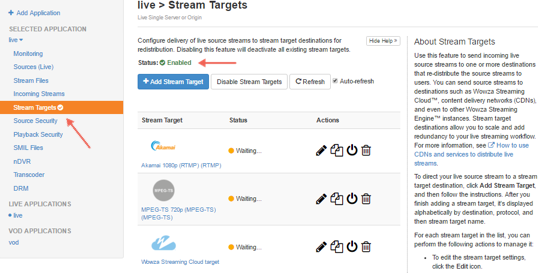
When Stream Targets is enabled, a checkmark appears next to Stream Targets in the contents panel and the Stream Targets page shows Status is Enabled.
- If the Status of an individual stream target is Disabled, click the Enable icon for the stream in the Actions column.
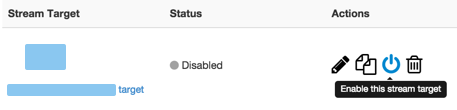
- When prompted, click Restart Now so your change takes effect.
When a stream target is enabled, its status on the Stream Targets page is one of the following:
- Waiting - The target is enabled but isn't yet pushing the stream to the Akamai destination because either the target's configured source stream isn't connected to the Wowza Streaming Engine input or Wowza Streaming Engine hasn't completed initializing the connection to the Akamai destination.
- Active - If using RTMP, the Wowza Streaming Engine instance successfully connected to the Akamai destination and is actively pushing the stream. If using HLS or MPEG-DASH, the stream is actively being pushed to the Akamai destination and there have been no errors.
- Error - If using RTMP, the Wowza Streaming Engine instance unsuccessfully tried to connect to the Akamai destination. If using HLS or MPEG-DASH, the Wowza Streaming Engine instance unsuccessfully tried to push the streaming files to the Akamai destination. Make sure the target's configured source stream is connected to the Wowza Streaming Engine input. Errors might be due to an invalid target configuration or issue with the destination server.
The status of each stream target updates automatically if your Wowza Streaming Engine application has fewer than 100 stream targets. If your application has more than 100 stream targets, you can click Refresh to update the status.
Note: Stream targets created using the group-manager profile do not appear in Wowza Streaming Engine Manager.
Test the connection
Configure your encoder and then test the live stream.
- Start the stream in the H.264 camera or encoder that's sending the stream to your application in Wowza Streaming Engine. The application ingests the live stream and sends it to Akamai.
- In Wowza Streaming Engine Manager, verify that the stream is working:
- Click Incoming Streams in the contents panel and then click the stream name. The stream detail page displays the Status of the stream (Active) as well as details about connections, uptime, and throughput for the live stream.
- Click Stream Targets in the contents panel. The Status of the target should be Active.
- Click Incoming Streams in the contents panel and then click the stream name. The stream detail page displays the Status of the stream (Active) as well as details about connections, uptime, and throughput for the live stream.
- In Luna Control Center, verify that Akamai is receiving the stream and distributing it to endpoints across its network:
- Click the Monitor menu, choose Monitor Streams, and then choose the product. Check to see that there's an Ingest Bit Rate and an Egress Bit Rate for your stream.
- Try the playback URL(s) in a test player, such as the Wowza test players or one of the Akamai players listed below.
- Click the Monitor menu, choose Monitor Streams, and then choose the product. Check to see that there's an Ingest Bit Rate and an Egress Bit Rate for your stream.
HLS and MPEG-DASH only
To test the playback HLS streams, you can also use any HLS player, such as the stock iOS media player or Safari. To test the playback of MPEG-DASH streams, you can also use Google's open-source Shaka player.
For HLS and MPEG-DASH streams, Akamai playback URLs take the following format, where:
- [AkamaiStreamId] is the Akamai stream ID.
- [EventName] is your event name. If you're not using an event name, replace [EventName] with defEvent.
- [DestinationStreamName] is the name of the destination stream.
For targets defined with the group-manager profile:
| HLS | http://[akamai-playback-host].akamaihd.net/hls/live/[AkamaiStreamId]/[group.name]/playlist.m3u8 |
| MPEG-DASH | http://[akamai-playback-host].akamaihd.net/dash/live/[AkamaiStreamId]/[group.name]/manifest.mpd |
where [akamai-playback-host] is the playback hostname for the stream as it appears in the Luna Control Center.
Note: The following formats and URLs are for targets created for the Akamai MSL 3 network. For information MSL 4 playback URLs, see the Akamai article What is the publishing URL format for Media Services Live 4 (MSL4) Streams? and the Akamai Media Services Live HLS and DASH Ingest User Guide.
For Primary streams:
| HLS | http://[AkamaiHostId].akamaihd.net/hls/live/[AkamaiStreamId]/[EventName]/[DestinationStreamName]/playlist.m3u8 |
| MPEG-DASH | http://[AkamaiHostId].akamaihd.net/dash/live/[AkamaiStreamId]/[EventName]/[DestinationStreamName]/manifest.mpd |
For Backup streams:
| HLS | http://[AkamaiHostId].akamaihd.net/hls/live/[AkamaiStreamId]-b/[EventName]/[DestinationStreamName]/playlist.m3u8 |
| MPEG-DASH | http://[AkamaiHostId].akamaihd.net/dash/live/[AkamaiStreamId]-b/[EventName]/[DestinationStreamName]/manifest.mpd |
For Redundant streams, the playback URLs are the same as the primary and backup described above, but the playlist returned is a variant playlist that includes both the primary and backup chunklist URLs.
Note: In Wowza Streaming Engine 4.7.5.02 and earlier, the playback URLs for redundant streams included [DestinationStreamName]_red.
For Primary streams in an adaptive group:
| HLS | http://[AkamaiHostId].akamaihd.net/hls/live/[AkamaiStreamId]/[AdaptiveGroup]/playlist.m3u8 |
| MPEG-DASH | http://[AkamaiHostId].akamaihd.net/dash/live/[AkamaiStreamId]/[AdaptiveGroup]/manifest.mpd |
For Backup streams in an adaptive group:
| HLS | http://[AkamaiHostId].akamaihd.net/hls/live/[AkamaiStreamId]-b/[AdaptiveGroup]/playlist.m3u8 |
| MPEG-DASH | http://[AkamaiHostId].akamaihd.net/dash/live/[AkamaiStreamId]-b/[AdaptiveGroup]/manifest.mpd |
For targets defined with an Akamai Event Name, the event name should precede the [DestinationStreamName] or [AdaptiveGroup] in the URL, such as:
| HLS | http://[AkamaiHostId].akamaihd.net/hls/live/[AkamaiStreamId]/[AkamaiEventName]/[DestinationStreamName]/playlist.m3u8 |
For Redundant streams in an adaptive group, the playback URLs are the same as the primary and backup adaptive group URLs described above, but the playlist returned is a variant playlist that includes all of the primary and backup chunklist URLs.
- Stop the stream in the source camera or encoder to end your test connection.