Use the Transcoder in Wowza Streaming Engine™ media server software to decode video and audio in incoming live streams and re-encode for playback on desired playback devices. The re-encoded renditions have aligned keyframes for adaptive bitrate delivery.
Video tutorial: Adaptive bitrate streaming with Wowza Streaming Engine
See how to set up the Transcoder for adaptive bitrate streaming.
Configure the Transcoder in Wowza Streaming Engine Manager
Transcoder uses a templating system to match incoming streams to an encoding template that controls the encoding parameters of the resultant transcoded streams. Wowza Streaming Engine has several default templates for the most common workflows:
- Audio Only – Ingest a source stream with G.711 (µ-law and A-law)/MPEG-1 Layer 1/2/MPEG-1 Layer 3 (MP3) audio and convert it to AAC for compatibility with additional player technologies. If your source stream includes video, Transcoder ignores it when using this template. See Transcode only the audio channel of an incoming stream with Wowza Streaming Engine.
- Transcode – Ingest a source stream that isn't encoded with H.264 video and/or AAC or MP3 audio. The transcoded output has multiple bitrates, each encoded with H.264 video and AAC or MP3 audio, and is keyframe-aligned for adaptive streaming.
- Transcode H.265 – In Wowza Streaming Engine version 4.8.0 and later, ingest a source stream that isn't encoded with H.265 video. The transcoded output has multiple bitrates, each encoded with H.265 video. Note that the H.265/HEVC codec isn't widely supported by playback protocols and players. See Stream using HEVC/H.265 with the Transcoder in Wowza Streaming Engine for more information.
- Transrate – Ingest a source stream that's encoded with H.264 video and AAC or MP3 audio. The transrated output has multiple bitrates that are keyframe aligned for adaptive streaming. The highest output bitrate is the original source stream. The default Transrate template includes several sample encoding presets with the Audio Codec set to Passthrough, since the source audio is already AAC, a supported playback audio codec for Wowza Streaming Engine. The Video Codec setting is set to H.264 because other properties are configured to customize the resultant stream.
- Transcode H.265 with Bit Depth Conversion – In Wowza Streaming Engine version 4.9.7 and later, provides a set of preconfigured encoding presets for generating H.265 output renditions. It includes a passthrough option that preserves the source stream, along with 1080p and 720p renditions encoded using the NVENC EVA implementation. For each resolution, both standard and 8-bit color-converted variants are available, allowing 10-bit sources to be explicitly converted to 8-bit output when required. 10-to-8-bit color-depth conversion is available only when using the EVA-based NVIDIA GPU transcoding pipeline.
You can configure Transcoder templates in Wowza Streaming Engine Manager by setting the active Transcoder stream names and bitrates. Encoding presets define the parameters of the transcoded or transrated output renditions. Each preset represents an encoded bitrate rendition. Based on your needs, you can have a single template with multiple presets or multiple templates. Be sure to consider your configuration and available bandwidth when determining the number of presets you use.
Use the following procedure to activate streams in Transcode, Transrate, or Audio Only templates. This example configures the Transrate template ([install-dir]/transcoder/templates/transrate.xml). Make a backup copy of this file before making any modifications.
Enable the Transcoder
- In the Applications contents panel, select your live application, and then click Transcoder. In the details page, click Enable Transcoder.

- Restart the application.

Limit incoming streams on a Transcoder
You can limit the number of incoming transcoded streams allowed for your application. This is helpful when you want to manage billing and overage costs. You're limited to 10 concurrent, transcoded channels per instance per month. You can use the following steps to limit the number of incoming connections. For more information, see Wowza Streaming Engine Pricing or Licensing Transcoder.
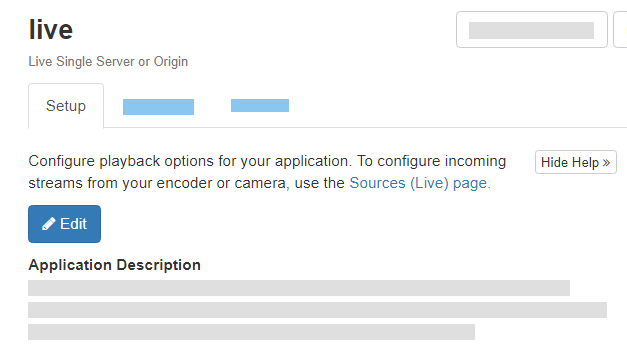
- In the Applications contents panel, select your live application.
- From the Setup tab, click Edit.
- Scroll down to the Maximum Connections section.
- Select the Limit number of connections checkbox.
- Enter the number of allowed connections in the textbox.
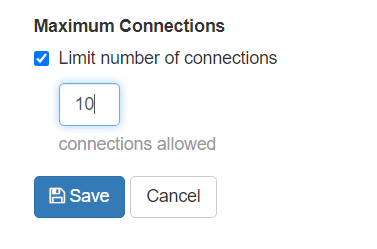
- Click to Save your settings.
- Restart the application for the changes to take effect.
Monitor transcodes across your server
To help manage costs and usage, you can monitor the total number of concurrent transcodes across your server. Use these steps to get this information about your Transcoder usage. For more information, see Wowza Streaming Engine Pricing or Licensing Transcoder.
- In Wowza Streaming Engine Manager, click the Server tab.
- In the Server contents panel, click Transcoder.
- On the Transcoder page, check the Currently Transcoding section for the number of channels.
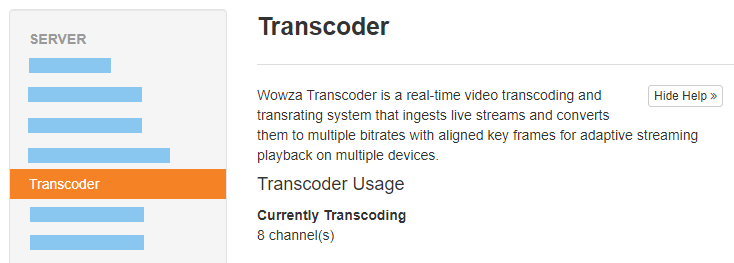
A channel is a single incoming stream ingested by the Transcoder. For billing purposes, the maximum number of concurrent streams ingested by the Transcoder at any given time during the billing period is counted. The total number of streams ingested during the billing period isn't included in the count.
Configure an encoding preset
- On the Setup tab, under Transcoder Templates, click the Transrate (Default) template.

- In the Presets list, click the Edit icon for the 240p preset.

- Accept the default settings or edit the options for a 240p encoded stream. For more information about the encoding preset options available in Wowza Streaming Engine Manager, see Template details - Encode.
- Click Save to save the settings.
- In the Presets list, click 240p, and then click Enable Preset to enable the updated 240p preset.


Configure the decoding preset
- Click Return to Transcoder Template.
- Click the Decoding Preset tab, and then click Edit.

- Accept the default settings or edit the decoding options. For more information about the decoding options available in Wowza Streaming Engine Manager, see Template details - Decode.
- Click Save.

Configure the scaling preset
- Click Return to Transcoder Template.
- Click the Scaling Preset tab, and then click Edit.

- Accept the default settings or edit the scaling options. For more information about the scaling options available in Wowza Streaming Engine Manager, see Template details - Scale.
- Click Save.
Set EVA implementation
When editing a Transcoder template, the Set EVA implementation button displays for all three Encoding Presets, Decoding Preset, and Scaling Preset tabs.
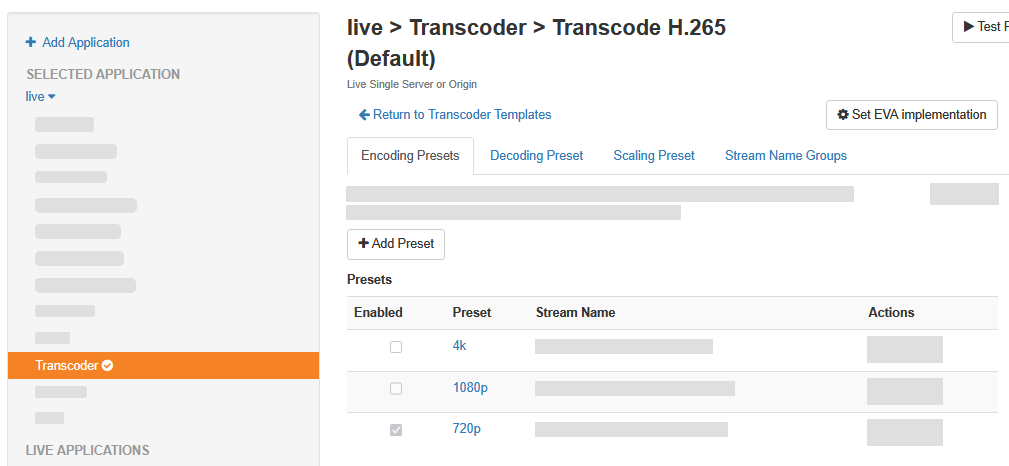
This button was introduced with Wowza Streaming Engine 4.9.7. It configures all decoding, scaling, and encoding presets to use the MainConcept Easy Video API (EVA) pipeline (NVCUVID EVA decoding, CUDA EVA scaling, and NVENC EVA encoding). For full compatibility, set all decoding, scaling, and encoding presets to use EVA. EVA can be mixed with the Default transcoding implementation, but the scaler and encoder must be of the same type. EVA transcoding cannot be combined with the legacy NVIDIA transcoding pipeline.
For driver details, see EVA transcoding driver requirements. If the system doesn't meet the NVIDIA driver or hardware requirements, Wowza Streaming Engine automatically falls back to the default software decoder, scaler, or encoder. The following resources contain additional details about EVA transcoding options:
Add a graphic overlay
You can apply static GIF, JPEG, PNG, and BMP overlay images to streams to achieve stationary image effects, such as a watermark, to your video. You can customize the image's location, size, alignment, and opacity using the settings described in this section.
You can add a different overlay image to each encoded output rendition on a template's Encoding Presets tab. If you want the same overlay image for all encoded output renditions, apply it to the decoded stream on the template's Decoding Preset tab. A decode-level graphic overlay is the same as an encode-level graphic overlay except that the overlay is applied to the decoded stream. This means that all encoding presets will include the overlay, making this the recommended place to define an overlay if you want the same overlay for all output renditions.
- To add an overlay image to an encoding preset or a decoding preset, click Edit and then click Add Overlay Image.

- The Add Overlay Image modal displays. Click the Image tab and configure the options.

- Image Name – A unique name for the overlay image to differentiate it from other images.
- Image Path – The path to the overlay image.
- Update overlay image when source image updates – Check the source image file for updates every 750 ms and refresh the overlay image if it has changed.
- Width and Height – The overlay image width and height. To specify that the source image width and/or height be used, select the Same as source image option. The minimum supported width and height are 4 pixels, and the sum of these values must be an even number.
- Opacity – The overlay image opacity. Valid values range from 0 (completely transparent) to 100 (completely opaque).
- Image Name – A unique name for the overlay image to differentiate it from other images.
- Click the Image Placement tab and configure the options.

- Location – Select an option button in this box to specify the base position of the overlay image. Think of the location as analogous to the display on a playback device.
- Horizontal Offset and Vertical Offset – Specify a horizontal and/or vertical offset (in pixels) for the overlay image from the base position that you specified in the Location box. Values must be zero or greater (even-numbered values recommended). For example, to align an overlay image 10 pixels above the lower-right corner of the output frame, select the option button in the lower-right corner of the Location box, and then enter 10 in the Vertical Offset box.
- Location – Select an option button in this box to specify the base position of the overlay image. Think of the location as analogous to the display on a playback device.
- Click Add.
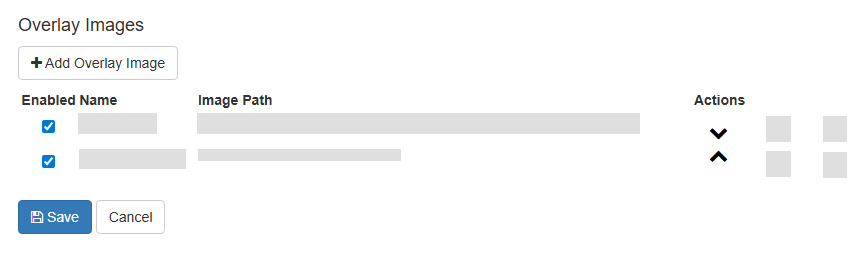
- To enable an overlay image, click the Enabled checkbox for the overlay image, and then click Save. You can enable multiple overlay images for a single preset. If you enable multiple overlay images, you can use the Move Up and Move Down icons to arrange them in the proper order. In the video, images higher in the list are displayed on top of images lower in the list.


Select the Transcoder template for an application or stream
By default, all transcoding sessions associated with an application use the same Transcoder template. The active Transcoder template can also be based on the stream name. To configure all transcoding sessions for a particular stream to use the same transcoder template, complete the following steps:
- Edit the Transcoder Options and select the Match incoming stream name to template name checkbox, click Save, and then restart the application.
- Under Transcoder Templates, click Copy Template.
- In the Copy Transcoder Template modal, select Transcode (Default). Name the template (for example, myStream). Then click OK.

- Edit the encoding preset options or add new presets for the copied template.

This will become the transcoding template for the stream named myStream. Other incoming streams to this application can have a template with a corresponding name for transcoding or transrating; otherwise, they will use the Fallback Template specified on the Transcoder > Setup tab.


Use the same template for all transcoding sessions
To configure an application to use the same Transcoder template for all transcoding sessions (default), complete the following steps:
- In the contents panel for your live application, click Transcoder, and then click Edit on the Setup tab.
- Under Transcoder Options, clear the Match incoming stream name to template name checkbox, and then click Save.
Clearing the checkbox means that all incoming streams will use the same template.
For information about playback using transcoded or transrated streams, see Stream adaptive bitrate content with Wowza Streaming Engine.
View adaptive bitrate Stream Name Groups
The Transcoder templating system organizes streams into logical groups, known as Stream Name Groups, for live playback. These groups are defined in the template and created automatically when Transcoder is enabled, and an incoming stream is active.
Stream Name Groups are visible in Wowza Streaming Engine Manager, and the logically grouped streams are available using the ngrp: stream name prefix for adaptive bitrate delivery. The newly encoded set of multiple-bitrate streams includes aligned keyframes, enabling adaptive bitrate delivery from Wowza Streaming Engine for RTMP, HLS, and MPEG-DASH. Stream Name Groups serve the same purpose as a Synchronized Multimedia Integration Language (SMIL) playlist file.
To view Stream Name Groups in Wowza Streaming Engine Manager:
- In the Applications contents panel, select your live application, and then click Incoming Streams.
- Click View by Group.
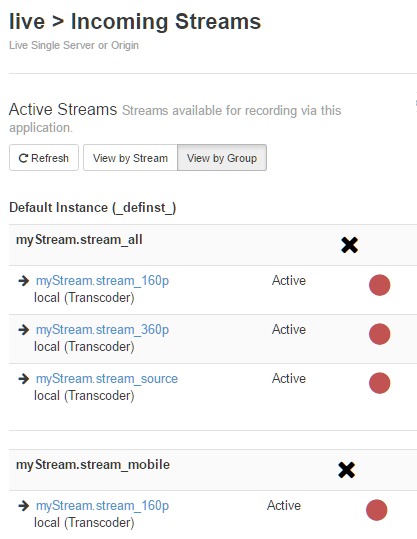
This view organizes the list of incoming streams alphabetically by group name. Incoming streams that aren't part of a group are displayed in a group named Ungrouped Streams.

To play a multiple-bitrate live stream, the URLs using each of the player technologies would be the following:
HLS
http://[address]:1935/myApplication/ngrp:myStream_all/playlist.m3u8
MPEG-DASH
http://[address]:1935/myApplication/ngrp:myStream_all/manifest.mpd
- To include the incoming stream in a stream name group for adaptive bitrate streaming, it's best to add it as an <Encode> block with both Video/Codec and Audio/Codec set to PassThru. The <StreamName> element must result in a unique name from the incoming stream name.
- You can create a stream name group for Apple HLS streaming with an audio-only rendition as described in Create Apple App Store compliant streams (audio only rendition) with Wowza Streaming Engine. If you do this, add a <MediaListRendition> element to the stream name group with a <WowzaAudioOnly> element set to true. The following is an example:
<StreamNameGroup>
    <Name>all</Name>
    <StreamName>${SourceStreamName}_all</StreamName>
    <Members>
        <Member>
            <EncodeName>source</EncodeName>
        </Member>
        <Member>
            <EncodeName>360p</EncodeName>
        </Member>
        <Member>
            <EncodeName>160p</EncodeName>
        </Member>
        <Member>
            <EncodeName>160p</EncodeName>
            <MediaListRendition>
                <WowzaAudioOnly>true</WowzaAudioOnly>
            </MediaListRendition>
        </Member>
    </Members>
</StreamNameGroup>
Configure the Transcoder in XML
- [stream-name]_360p – High Profile stream
- [stream-name]_160p – Baseline Profile stream
- ngrp:[stream-name]_all – Adaptive bitrate stream for HLS and MPEG-DASH streaming
All incoming streams published to an application are transcoded according to the template configured by the Transcoder/Templates setting in the [install-dir]/conf/[application]/Application.xml file. You can transcode a single incoming stream to as many new streams as you like.
Transcoder template XML reference
For details about template XML settings, see the following sections about the different blocks in Transcoder templates:- Template details - SortBuffer
- Template details - Encode
- Template details - Decode
- Template details - Scale
- Template details - StreamNameGroup
Template details - SortBuffer
With Wowza Streaming Engine 4.6.0 and later, the post-process block (<PostProcess>...</PostProcess>) is included in the default Transcoder templates. You can use the <PostProcess> block to configure the sort buffer, which is required to have a complete frame for transcoding or transrating a stream. If the <PostProcess> block isn't present in the template, the default values for sort buffer settings are used.- Enable – If set to true, the sort buffer is active. If set to false, the sort buffer isn't used. The default value is true.
- BufferSize – The time, in milliseconds, that packets are maintained in the sort buffer before they're flushed. The default value is 750 milliseconds.
- FlushInterval – The frequency, in milliseconds, that the sort buffer is processed. The default value is 75 milliseconds.
Template details - Encode
The encodes block (<Encodes>...</Encodes>) contains one or more encode blocks (<Encode>...</Encode>), each representing an encoding preset. A single template can have multiple <Encode> blocks. You must configure the Video Codec and the Audio Bitrate settings when transcoding. If you forget to assign a value for Audio Bitrate, a default value is assigned so that the encoding of the resultant stream won't fail.- Enable – If set to true, the encode block is active. If set to false, the encode block is ignored. The default template includes multiple <Encode> block examples, some of which are not enabled. You can enable or add additional encode blocks to your template as needed.
- Name – Each <Encode> block is given a name that's used in logging. This name must be unique within a given template.
- StreamName – The transcoded stream name. You can use the ${SourceStreamName} variable, which is replaced with the source stream name. Again, the resultant stream name must be unique for a given application. It's best to use the source stream name as part of the destination stream name.
- Video/Codec – The video codec to use:
- H.264 – Transcode video to H.264. Also use when modifying source H.264 to achieve a different bitrate, profile, etc.
- H.265 – In Wowza Streaming Engine 4.8.0 and later, transcode video to H.265/HEVC.
Note: For optimal results when using the H.265 video codec, follow the instructions in Stream using HEVC/H.265 with the Transcoder in Wowza Streaming Engine. - VP8 and VP9 – In Wowza Streaming Engine 4.5.0 (and later), transcode video to VP8 and VP9, respectively.
Note: For best results when using the VP8 and VP9 video codecs, follow the instructions in Transcode live streams to WebM for MPEG-DASH playback with Wowza Streaming Engine. - PassThru – Pass the source video stream through to an output rendition without making any changes.
- Disable – Disable video in the output rendition.
- Video/Implementation – The accelerated video encoding implementation to use:
- Default – Set to default. The default built-in software video encoder (not hardware-accelerated) used for the output video codec. For H.264 and H.265, the default encoder is MainConcept. For VP8 and VP9, the default encoder is VPX.
- AMD Xilinx U30 – Set to u30. AMD Xilinx-accelerated transcoding is available for H.264 and H.265 encoding on Linux only. If your hardware doesn't support the AMD Xilinx instruction set, the unaccelerated default software encoder is used.
- Legacy NVENC – Set to NVENC. Legacy NVIDIA NVENC encoding acceleration directly leveraging NVIDIA's APIs. If your NVIDIA graphics card doesn't have the NVENC hardware-based video encoder, then the unaccelerated default software encoder is used. For more, see Server specifications for NVIDIA acceleration with Wowza Streaming Engine transcoding.
- NVENC EVA – Set to NVENC EVA. NVIDIA NVENC encoding acceleration leveraging MainConcept's Easy Video API (EVA). For NVIDIA accelerated transcoding, avoid mixing legacy NVIDIA implementations with EVA. For full compatibility, set all Encoding, Decoding, and Scaling Presets to use EVA. For example, decode a stream using NVCUVID EVA, scale using CUDA EVA, and encode using NVENC EVA. EVA can be mixed with the Default implementation, but the scaler and encoder must be of the same type. While this mixed configuration is supported, it may reduce performance or efficiency. If your NVIDIA graphics card doesn't support the required NVIDIA drivers, the default software encoder is used. EVA transcoding with NVIDIA GPUs requires NVIDIA display drivers 572.60 (Windows x86) and 570.124.04 (Linux x86) as the minimum on the server running Wowza Streaming Engine.
- Video/GPUID – The Transcoder supports multiple NVIDIA GPUs when using NVIDIA-based encoding implementations. When manually specifying a GPUID, behavior depends on the transcoding pipeline. The Encode Video/GPUID setting is supported only with the legacy NVIDIA implementation and isn't available when using EVA. In legacy mode, the decoder and encoder can be assigned to different GPUs, though this may degrade performance. This GPUID setting doesn't automatically balance GPU load across multiple cards. You must explicitly specify which GPU to use. Available GPUs are enumerated when the Transcoder starts, beginning with ID 0. A value of -1 instructs Wowza Streaming Engine to always use the first enumerated GPU. To target a specific GPU, enter its enumeration ID.
Notes:
- Rather than manually specifying a GPUID, you can use the Java API to automatically distribute NVIDIA-accelerated transcoding sessions across available GPUs. For more, see Load balance NVIDIA accelerated transcoding across GPUs with the Wowza Streaming Engine Java API.
- For EVA workflows, the GPUID is required to be set via XML on the decoding side. For more, see Template details - Decode.
- Video/FrameSize – The transcoded frame size to use:
- letterbox – Maintains the source video's aspect ratio and scales it to fit the destination frame, filling any remaining space with black bars.
- fit-width – Adjusts the height to fit the specified width while maintaining the incoming aspect ratio.
- fit-height – Adjusts the width to fit the specified height while maintaining the incoming aspect ratio.
- crop – Scales and crops the source video to fit the destination frame size while maintaining the incoming aspect ratio.
- stretch – Stretches the video to fit the specified width and height.
- match-source – Uses the same frame width and height as the source video.
- letterbox – Maintains the source video's aspect ratio and scales it to fit the destination frame, filling any remaining space with black bars.
- Video/Crop – Crops the source video frame. The x,x,x,x values represent the number of pixels to crop on the left, right, top, and bottom of the source video frame. It can't be used with Video/SourceRectangle.
- Video/SourceRectangle – Selects only a portion of the source video frame for transcoding. The x,x,x,x values represent the top, left, width, and height of the rectangle. It can't be used with Video/Crop.
- Video/Profile – The video profile to use:
- baseline – Lowest complexity stream for mobile live streaming.
- main – Higher complexity and higher quality stream for desktop and over-the-top streaming.
- high – High-complexity stream for broadcast and disc storage applications.
- baseline – Lowest complexity stream for mobile live streaming.
- Video/Bitrate – The target video bitrate to use, in bits per second (bps). If Video/Codec is set to PassThru, this value is ignored unless you specify the ${SourceVideoBitrate} variable, which is replaced with the video bitrate of the source stream.
- Video/KeyFrameInterval – The keyframe interval to use:
- FollowSource – If set to true, the keyframe interval of the transcoded video is the same as the keyframe interval of the source video. If set to false, the Video/KeyFrameInterval/Interval value (see below) determines the keyframe interval.
- Interval – An integer value (n) that specifies how often keyframes are generated (every nth frame is a keyframe)
- FollowSource – If set to true, the keyframe interval of the transcoded video is the same as the keyframe interval of the source video. If set to false, the Video/KeyFrameInterval/Interval value (see below) determines the keyframe interval.
- Video/Overlays/Overlay – Container for specifying a graphic overlay, such as a watermark. You can apply overlays to both the decoded stream and to each newly encoded output rendition. If you want the same overlay for all output renditions, apply it to the decoded stream.
Note: See Overlay image requirements for the Transcoder in Wowza Streaming Engine for image requirements.- Enable – Set to true to enable graphic overlays. Overlays with transparency require extra CPU resources.
- Index – Graphic overlay Z-order.
- ImagePath – Path to the graphic overlay image. GIF, JPEG, PNG, and BMP image file formats are supported.
- CheckForUpdates – When set to true, Transcoder checks for image file updates every 750 milliseconds and updates the overlay if the file changes.
Note: When using the CheckForUpdates feature to dynamically monitor for overlay image file updates, be sure to properly update the image file in a single atomic operation. This ensures that Transcoder gets the complete image file when it determines that an update has happened. For more information about atomic file updates and file modification date issues in Windows, see How to do atomic writes in a file and Windows NT Contains File System Tunneling Capabilities. - Opacity – Overlay opacity. Valid values range from 0 (completely transparent) to 100 (completely opaque).
- Location/X and Location/Y – Offset of overlay from base position. Negative values are valid.
- Location/Width and Location/Height. Width and height of overlay. If set to ${ImageWidth} and ${ImageHeight}, the original image size is used.
- Location/Align – Default location of overlay (horizontal,vertical). Valid horizontal values are left, right, and hcenter; valid vertical values are top, bottom, and vcenter. As an example, to place the overlay 10 pixels from the bottom-right corner of the output frame:
<Location>
    <X>-10</X>
    <Y>-10</Y>
    <Width>${ImageWidth}</Width>
    <Height>${ImageHeight}</Height>
    <!-- horiz: left, right, hcenter - vert: top, bottom, vcenter -->
    <Align>right,bottom</Align>
</Location>
- Enable – Set to true to enable graphic overlays. Overlays with transparency require extra CPU resources.
- Video/Parameters – Implementation-specific advanced parameters that control the video encoding process. See Use video encoding parameters with the Transcoder in Wowza Streaming Engine for more information.
- Audio/Codec – The audio codec to use:
- AAC – Transcode audio to AAC.
- Vorbis – With Wowza Streaming Engine 4.5.0 (and later), transcode audio to Vorbis.
- Opus – With Wowza Streaming Engine 4.5.0 (and later), transcode audio to Opus.
Note: For optimal results when using the Vorbis and Opus audio codecs, follow the instructions in Transcode live streams to WebM for MPEG-DASH playback with Wowza Streaming Engine. - PassThru – Pass the source audio stream through to the output rendition without making any changes.
- Disable – Disable audio in the output rendition.
- AAC – Transcode audio to AAC.
- Audio/Bitrate – The target audio bitrate to use, in bits per second (bps). The value is ignored if Audio/Codec is set to PassThru. The ${SourceAudioBitrate} variable can be used and will be replaced with the audio bitrate of the source stream.
- Audio/Resample – Container for converting the audio sample rate.
- Enable – Set to true to enable audio resampling. The default value is false.
- SampleRate – The audio sample rate in Hz.
- Channels – The number of audio channels: 1 for mono or 2 for stereo.
- Audio/Parameters – Implementation-specific advanced parameters that control the audio encoding process. See Use audio encoding parameters with the Transcoder in Wowza Streaming Engine for more information.
Template details - Decode
The decode block (<Decode>...</Decode>) represents the decoding process. A template has just one <Decode> block.- Video/Implementation – The accelerated video decoding implementation to use:
- Default – Set to default. The default built-in software video decoder (not hardware-accelerated) for the source video codec. For H.264 and H.265, the default decoder is MainConcept. For VP8 and VP9, the default decoder is VPX.
- AMD Xilinx U30 – Set to u30. AMD Xilinx accelerated transcoding for Linux only. If your hardware doesn't support the AMD Xilinx instruction set, the unaccelerated default software encoder is used.
- Legacy NVCUVID – Set to NVCUVID. Legacy NVIDIA Video Codec SDK Decoder (also known as NVCUVID or NVDEC). Most modern NVIDIA graphics cards have fixed-function hardware that uses the NVIDIA Video Decoder APIs to accelerate decoding on NVIDIA GPUs with CUDA. If your NVIDIA graphics card doesn't support the NVCUVID/NVDEC hardware-based video decoder, the unaccelerated default software encoder is used. For more, see Server specifications for NVIDIA acceleration with Wowza Streaming Engine transcoding.
- NVCUVID EVA – Set to NVCUVID EVA. MainConcept EVA decoding acceleration with NVIDIA NVCUVID. For NVIDIA accelerated transcoding, avoid mixing legacy NVIDIA implementations with EVA. For full compatibility, set all Encoding, Decoding, and Scaling Presets to use EVA. For example, decode a stream using NVCUVID EVA, scale using CUDA EVA, and encode using NVENC EVA. EVA can be mixed with the Default implementation, but the scaler and encoder must be of the same type. While this mixed configuration is supported, it may reduce performance or efficiency. If your hardware doesn't support the NVCUVID instruction set and the NVIDIA driver requirements, the default software decoder is used. EVA transcoding with NVIDIA GPUs requires NVIDIA display drivers 572.60 (Windows x86) and 570.124.04 (Linux x86) as the minimum on the server running Wowza Streaming Engine.
- Video/GPUID – The Transcoder supports multiple NVIDIA GPUs when using NVIDIA-based decoding implementations. The Decode Video/GPUID setting is supported by both EVA and legacy NVIDIA transcoding pipelines. When using EVA, decoding and encoding both run on the GPU specified by the decoder GPUID, and the ServerListenerTranscoderPreload listener must be added in the Server.xml:
<ServerListener>
    <BaseClass>com.wowza.wms.module.ServerListenerTranscoderPreload</BaseClass>
</ServerListener>
If using the legacy NVIDIA pipeline, the decoder and encoder can be assigned to different GPUs, although this may impact performance. This GPUID setting doesn't provide automatic GPU load balancing. You must explicitly specify which GPU to use. Available GPUs are enumerated when the Transcoder starts, beginning with ID 0 (the default value). A value of -1 instructs Wowza Streaming Engine to always use the first enumerated GPU. To target a specific GPU, enter its enumeration ID.
Note: Rather than manually specifying a GPUID, you can use the Java API to automatically distribute NVIDIA-accelerated transcoding sessions across available GPUs. For more, see Load balance NVIDIA accelerated transcoding across GPUs with the Wowza Streaming Engine Java API.
- Video/Deinterlace – Set to true if the source video stream requires deinterlacing for progressive scan displays.
- Video/Overlays/Overlay/[Elements] – A decode-level graphic overlay is the same as an encode-level graphic overlay except that the overlay is applied to the decoded stream. This means that all encoding presets will include the overlay, making this the recommended place to define an overlay if you want the same overlay for all output renditions. Note that overlays with any transparency require extra CPU resources.
Note: See Overlay image requirements for the Transcoder in Wowza Streaming Engine for image requirements - Video/Parameters – Implementation-specific advanced parameters that control the video decoding process. See Use video decoding parameters with the Transcoder in Wowza Streaming Engine for more information.
Note: See Replace missing video frames to ensure a consistent frame rate with Wowza Streaming Engine to configure the decoder to identify and replace missing video frames and ensure a consistent output frame rate.
Template details - Scale
With Wowza Streaming Engine 4.6.0 and later, the scale section (<Scale>...</Scale>) is included in the default Transcoder templates. You can use the <Scale> block to configure video scaling. By default, video scaling is performed on the CPU, but it's possible to offload transcoder video scaling to NVIDIA CUDA-based or AMD Xilinx U30 GPUs. This reduces the overall CPU usage of a given set of transcoder sessions.- Implementation – The accelerated scaling implementation to use:
- Default – Set to default. The default built-in software scaler (not hardware-accelerated) that controls how video frames are resized when creating output renditions at different resolutions. If set to default (or if the <Scale> block isn't in the template), CPU resources are used for video scaling.
- AMD Xilinx U30 – Set to u30. AMD Xilinx accelerated transcoding is available only on Linux. AMD Xilinx U30 video scaling can be used with any combination of decoding and encoding implementations. It doesn't support the de-interlace source streams option. If your hardware doesn't support the AMD Xilinx instruction set, the unaccelerated default software scaler is used.
- Legacy CUDA – Set to CUDA. Legacy CUDA scaling that relies on NVIDIA's APIs directly and works on all NVIDIA CUDA cards with Tesla technology or higher. If set to CUDA, NVIDIA CUDA-based GPU video scaling is enabled. CUDA-based video scaling can be used with any combination of decoding and encoding implementations, except for EVA. For example, you can decode a stream using Default, scale using CUDA, and encode using Default. However, CUDA scaling is most efficient when used with the NVCUVID decoder and NVENC encoder. When used this way, video frames aren't transferred from the graphics card to system memory. CUDA scaling also offloads graphics overlay processing to the GPU. For more, see Server specifications for NVIDIA acceleration with Wowza Streaming Engine transcoding.
- CUDA EVA – Set to CUDA EVA. Video scaling that leverages MainConcept's Easy Video API (EVA), which provides a unified abstraction layer over MainConcept's codec SDKs. When NVIDIA GPUs are present, EVA automatically uses NVIDIA's hardware acceleration stack rather than relying solely on CPU-based software codecs. For NVIDIA accelerated transcoding, avoid mixing legacy NVIDIA implementations with EVA. For full compatibility, set all Encoding, Decoding, and Scaling Presets to use EVA. For example, decode a stream using NVCUVID EVA, scale using CUDA EVA, and encode using NVENC EVA. EVA can be mixed with the Default implementation, but the scaler and encoder must be of the same type. While this mixed setup is supported, it may reduce performance or efficiency. When your hardware doesn't support the CUDA instruction set and the NVIDIA driver requirements, the system defaults to the Default software scaler.
Template details - StreamNameGroup
The Stream Name Group block (<StreamNameGroup>...</StreamNameGroup>) represents a group of streams that can be played using adaptive bitrate streaming. The <Name> is the name of the stream name group. The <StreamName> is used to play the multiple-bitrate stream when using HLS or MPEG-DASH streaming. For example, if the incoming stream name is myStream, then the above stream name group name is myStream_all. When customizing your template, you should define and successfully play individual resultant streams before defining your group.Select the Transcoder template for an application or stream
By default, all transcoding sessions associated with an application use the same Transcoder template. The active transcoder template can also be based on the stream name. To configure all transcoding sessions for a particular stream to use the same transcoder template, complete the following steps:
Note: In the instructions, replace [streamName] with the name of the stream being configured.
- Open [install-dir]/conf/[application]/Application.xml in a text editor and change the Transcoder/Templates value to [streamName].xml:
<Templates>[streamName].xml</Templates>
- Copy the [install-dir]/transcoder/templates/transrate.xml file and name it [install-dir]/transcoder/templates/[streamName].xml. This file will become your transcoding template for this stream.
To configure an application to use the same Transcoder template for all transcoding sessions (default), complete the following steps:
Note: In the instructions, replace [application] with the name of the application being configured.
- Open [install-dir]/conf/[application]/Application.xml in a text editor and change the Transcoder/Templates value to [application].xml:
<Templates>[application].xml</Templates>
- Copy the [install-dir]/transcoder/templates/transrate.xml file and name it [install-dir]/transcoder/templates/[application].xml. This file will become your transcoding template for this application.
Troubleshooting
Logging
Transcoder leverages the existing Wowza Streaming Engine log files, [install-dir]/logs. For more information about logging capabilities, see Logging.
Running Wowza Streaming Engine in standalone mode enables you to view these messages real time from the console window. For a list of messages, scenarios that can cause these messages, and suggestions for resolution, see Troubleshoot error messages in Wowza Streaming Engine.
Logging messages in the [install-dir]/logs/wowzastreamingengine_access.log file indicate if Wowza Streaming Engine and Transcoder are configured properly. If so, the logs will show that the Transcoder libraries and templates have been loaded, the detected hardware information, and the transcoded streams being published.
When Wowza Streaming Engine starts, it logs how the Transcoder is licensed.
Transcoder logging messages look like this:
decoder-video-start transcoder INFO 200 myStream {codec:H264, profile:77, level:31, frameSize:1280x720, displaySize:1280x720, frameRate:29.97}
encoder-audio-start transcoder INFO 200 myStream {name:"360p", bitrate:96000, codec:AAC, objectType:0, sampleRate:44100, channels:2}
encoder-video-start transcoder INFO 200 myStream {name:"360p", bitrate:850000, codec:H264, profile:77, level:30, frameSize:640x360, displaySize:640x360, frameRate:29.97}
decoder-video-stop transcoder INFO 200 myStream
decoder-audio-stop transcoder INFO 200 myStream
encoder-video-stop transcoder INFO 200 myStream {name: "360p"}
encoder-audio-stop transcoder INFO 200 myStream {name: "360p"}
Troubleshooting tests
Test #1: Basic live streaming
Use one of the following articles to verify that your live stream is properly set up without transcoding. In this test, the Transcoder/LiveStreamTranscoder property should be disabled in the Application.xml file.- Set up live streaming using an RTMP-based encoder in Wowza Streaming Engine
- Set up live streaming using an RTSP/RTP based encoder in Wowza Streaming Engine
- Publish and play a live stream (MPEG-TS based encoder) in Wowza Streaming Engine
- Set up live streaming using a native RTP encoder with SDP file in Wowza Streaming Engine
Test #2: Verify Transcoder license
Open the [install-dir]/conf/server.license file in a text editor. If Transcoder is licensed, the file has a line with the prefix TRNU4 such as, TRNU4-XXXXX-XXXXX-XXXXX-XXXXX-XXXXX.Test #3: Check to see that Transcoder is enabled
Under Transcoder in Wowza Streaming Engine Manager, look at the Status. If the Status is Not Enabled, click Enable Transcoder.
Test #4: Play a single transcoded stream
After verifying that Wowza Streaming Engine is configured correctly for live streaming and you can play a live stream successfully, play a single transcoded stream.- Re-enable transcoding in the Application.xml file by setting the Transcoder/LiveStreamTranscoder property value to transcoder:
<LiveStreamTranscoder>transcoder</LiveStreamTranscoder>
- Use the "Playback" section of the article that you used to set up basic live streaming as a reference to test the playback of a single transcoded stream.
- If you can't play the newly encoded stream, use the following troubleshooting checklist and look for verification information in the [install-dir]/logs/wowzastreamingengine_access.log file:
- Did the Transcoder libraries load? Failure of the libraries to load could be caused by malformed XML in Application.xml, a faulty installation, or a permissions issue. The following is an example message from a Windows 64-bit installation:
Comment server INFO 200 TranscoderSessionNative.loadLibrary: Load Transcoder list: C:\Program Files (x86)\Wowza Media Systems\Wowza Streaming Engine 4.6.0/lib-native/win64/transcoder.list - Did the Transcoder template load? Failure could be due to specifying a template in Application.xml that doesn't exist or the template isn't in the specified location. Sample templates are located in [install-dir]/transcoder/templates. The following example shows one of the default template files (transrate.xml) being loaded:
comment server INFO 200 LiveStreamTranscoder.init[myApplication/_definst_/myStream]: Load Transcoder template: C:\Program Files (x86)\Wowza Media Systems\Wowza Streaming Engine 4.6.0/transcoder/templates/transrate.xml - Is the source stream being published?
publish stream INFO 200 myStream_360p
If not, go back to Test #1, Basic live streaming.
- Are input source streams being decoded?
decoder-video-start transcoder INFO 200 myStream {codec:avc1.64002a, profile:High, level:4.2, frameSize:1920x1088, displaySize:1920x1080, frameRate:60.0}
decoder-audio-start transcoder INFO 200 myStream {codec:AAC, objectType:LC, sampleRate:48000, channels:2, resample:false}
If not, verify that the source stream is using a supported codec.
- Are streams being encoded as defined in the template? The following example shows activity for myStream_160p, as defined in the sample templates. Failure could be due to a different template specified in Application.xml or problems from earlier in this checklist.
encoder-video-start transcoder INFO 200 myStream {name:160p, bitrate:105000, codec:avc1.42e00d, profile:Baseline, level:1.3, frameSize:288x160, displaySize:288x160, frameRate:60.0}
encoder-audio-start transcoder INFO 200 myStream {name:160p, bitrate:96000, resample:false, codec:AAC, objectType:LC, sampleRate:48000, channels:2}
- Did the Transcoder libraries load? Failure of the libraries to load could be caused by malformed XML in Application.xml, a faulty installation, or a permissions issue. The following is an example message from a Windows 64-bit installation:
Test #5: Play a group
After you have successfully played a stream, play a group.- Is the group being created? Verify that the <StreamNameGroups>/<StreamNameGroup> section in the template is correct. The following example shows that the myStream_mobile group is added, as specified in the sample templates:
comment server INFO 200 TranscoderStreamNameGroup.addInternal[myApplication/_definst_/myStream]: Add name group: myStream_mobile - Is the source file missing audio?
- Does the name specified in the URL match the <StreamNameGroup>/<StreamName> property?
- Is the expected template being loaded? If a different template is loaded, the name of your group and, therefore, your URL syntax are probably different.
- Do the <StreamNameGroup>/<Members>/<Member>/<EncodeName> values match the <Encodes>/<Encode>/<Name> values?
Problems transcoding with a custom template or source
Verify configuration
- Is the correct Transcoder template file loaded?
comment server INFO 200 LiveStreamTranscoder.init[myApplication/_definst_/myStream]: Load Transcoder template: C:\Program Files (x86)\Wowza Media Systems\Wowza Streaming Engine 4.6.0/transcoder/templates/myTemplate.xml
In this example, the template myTemplate.xml is being loaded. If the wrong template is loaded, check the <Transcoder>/<Templates> value in Application.xml. Remember that you can have multiple templates specified in Application.xml. Order matters: Wowza Streaming Engine uses the first template listed.
- Do the <StreamNameGroup>/<Members>/<Member>/<EncodeName> values match the <Encodes>/<Encode>/<Name> values?
- Are you playing a source that has an unsupported codec? Remember that additional codecs are supported for transcoding only, so you don't want to specify those source files as part of your stream name group.
Verify source
- Is your source missing audio?
- Is your source file encoded with one of the supported ingest codecs?
More resources
- About Wowza Streaming Engine Transcoder
- Wowza Streaming Engine Transcoder performance benchmark
- Tune Wowza Streaming Engine for optimal performance
- Stream using HEVC/H.265 with the Transcoder in Wowza Streaming Engine
- Replace missing video frames to ensure a consistent frame rate with Wowza Streaming Engine
- Transcode live streams to WebM for MPEG-DASH playback with Wowza Streaming Engine
- Transcode only the audio channel of an incoming stream with Wowza Streaming Engine
- Fix a missing frame rate issue when using the Transcoder in Wowza Streaming Engine
- Reduce a transcoded stream's frame rate in Wowza Streaming Engine
- NVIDIA Video Encode and Decode GPU Support Matrix





