Configure source and playback security using Wowza Streaming Engine Manager.
Source security options
Limit connections
You can limit the number of concurrent connections a WSE application will accept using WSE Manager. There is no default limit.
- Open WSE Manager.
- Select the Applications tab.
- In the contents panel, select your application.
- On the Setup tab, click Edit.
- Under Maximum Connections, check the Limit number of connections box and set a value.
- Click Save.
- Restart the application to apply the changes.
Note: Changing the maximum number of connections in the WSE application does not override the Server → Virtual Host Setup → Maximum Connections setting. If both are set, WSE uses the lower value.
Secure incoming sources
For live applications, you can require authentication, restrict the IP addresses the WSE application accepts, or both. To use authentication, first add source authentication credentials.
- In Wowza Streaming Engine Manager, click Server in the menu bar and then click Source Authentication in the contents panel.
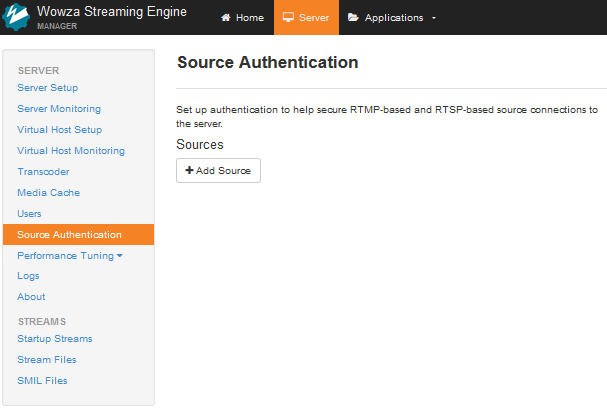
- Click Add Source.
- Add Source User Name and Password information. The source user name and password values are case-sensitive and can only contain alphanumeric, period (.), underscore (_), and hyphen (-) characters.
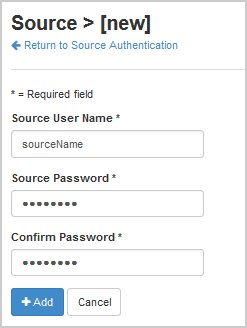
- Click Add.
A source account is used to authenticate connections from sources to live applications in Wowza Streaming Engine. You can create and store multiple source accounts for a Wowza Streaming Engine instance. By default, the source credentials are stored in [install-dir]/conf/publish.password.
- In your application's contents panel, click Source Security, and then click Edit.
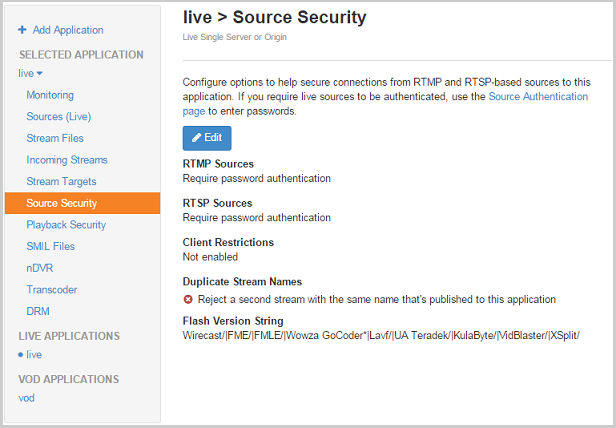
- Configure any of the following Source Security settings as needed.
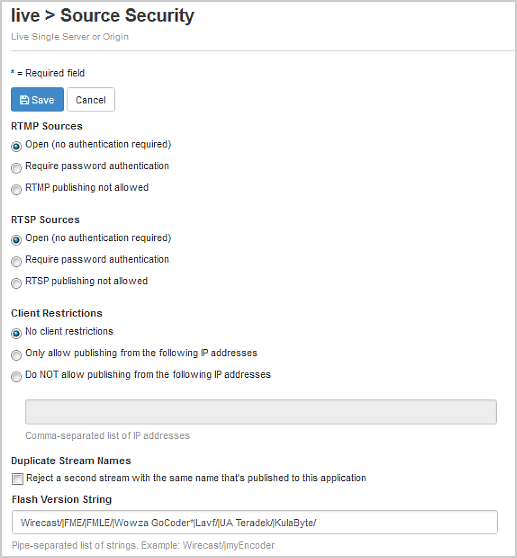
- RTMP Sources
- Open (no authentication required): Any RTMP encoder enabled for publishing can publish to this application.
- Require password authentication: (Default) RTMP encoders must authenticate to publish to this application. The encoder must supply the username and password of a source account on the Source Authentication page. Its FlashVer value must also match one of the values in the Flash Version String setting.
- RTMP publishing not allowed: This app does not accept RTMP streams.
Note: These settings affect only RTMP encoders that publish a stream to the server, not connections started with a stream file.
- RTSP Sources
- Open (no authentication required): Any RTSP encoder can publish to this application.
- Require password authentication: (Default) RTSP encoders must authenticate to publish to this application. The encoder must supply the username and password of a source account. on the Source Authentication page.
- RTSP publishing not allowed: WSE blocks all RTSP encoders from publishing to this application.
Note: These settings affect only RTMP encoders that publish a stream to the server, not connections started with a stream file.
- Client Restrictions: Controls which IP addresses encoders can connect from. Enter a comma-separated list of addresses. You can use the wildcard (*) character, but it must replace a complete block of numbers, not part of one. For example, 192.168.1.*, 10.*.*.* is valid but 123.2*.*.* is not.
- No client restrictions: (Default) WSE doesn't restrict client connections by IP address.
- Only allow publishing from the following IP addresses: Encoders at the listed IP addresses can publish after they authenticate. WSE blocks publishing from all other IP addresses.
- Do NOT allow publishing from the following IP addresses: WSE blocks publishing from the listed IP addresses. Encoders at all other IP addresses can publish they authenticate.
- Duplicate Stream Names: Select Reject a second stream with the same name that's published to this application. This prevents a second encoder from publishing an RTMP stream with the same name as an existing RTMP stream.
-
Flash Version String: Identifies an RTMP source to the server. Most commercial encoders use one of these values in their Flash Version String. If not set, the following default value is used.
Wirecast/|FME/|FMLE/|Wowza GoCoder*|Lavf/|UA Teradek/|KulaByte/|HaivisionKB/|VidBlaster/|XSplit/|PESA|makitoX/|Elemental Live*
VHost-level Flash version string
To apply the same custom Flash Version String to all applications, add a custom property at the virtual host (VHost) level.- Open WSE Manager.
- Select the Server tab.
- In the contents panel, click Virtual Host Setup.
- Select the Properties tab
- In the Quick Links bar, click Custom.
- In the Custom area, click Edit.
- Click Add Custom Property.
- In the Add Custom Property dialog box, specify the following settings:
- Path:
/Root/VHost. - Name:
securityPublishValidEncoders. - Type:
String. - Value:
Wirecast/|FME/|FMLE/|Wowza GoCoder*/|[myEncoderString]. The[myEncoderString]value is optional. Replace it with the Flash Version String for an additional RTMP source.
- Path:
- Click Add.
- On the Virtual Host Setup page, click Save.
- Restart the server when prompted to apply the custom property.
- RTMP Sources
- Click Save.
- Restart the application to apply the changes.
Playback security options
Playback security options apply to both live and VOD applications. By default, they don't restrict any playback connections.
- Open WSE Manager.
- Select the Applications tab.
- In the contents panel, select your application.
- Click Playback Security.
- Click Edit.
- Configure the following Playback Security settings as needed:
- Require Secure Connection: When enabled, RTMP players must use a secure protocol, such as RTMPS.
-
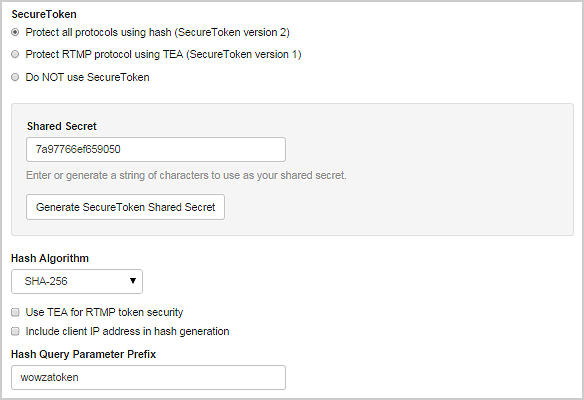
SecureToken: Requires clients to exchange a private security token with the application. Select a SecureToken option. Then enter a string of alphanumeric characters in the Shared Secret box, or click Generate SecureToken Shared Secret to create a random shared secret. Every connection that plays streams from this application must use this value. WSE rejects player connections that don't send the value or send a value that doesn't match.
To protect all streaming protocols, select Protect all protocols using hash (SecureToken version 2). This option generates the security token with a hash algorithm. For details, see Protect streaming using SecureToken in Wowza Streaming Engine.
- Client Restrictions: Controls which IP addresses players can connect from. Enter a comma-separated list of addresses. You can use the wildcard (*) character, but it must replace a complete block of numbers, not part of one. For example, 192.168.1.*, 10.*.*.* is valid but 123.2*.*.* is not.
- No client restrictions: (Default) WSE doesn't restrict client connections by IP address.
- Only allow playback from the following IP addresses: Players at the listed IP addresses can connect. WSE blocks all other IP addresses.
- Do NOT allow playback from the following IP addresses: WSE blocks the listed IP addresses from connecting. All other IP addresses can connect.
- Click Save.
- Restart the application to apply the changes.
Note: WSE ignores playback security settings if a connection's FlashVer matches the Flash Version String setting on the Source Security page. WSE identifies that connection as a source, not a player.
Custom properties
Advanced users can configure security with the following custom properties.
SecureToken target
When SecureToken is enabled, use the securitySecureTokenTarget property to define which operations require a valid security token. This property is ignored if the connection has a valid Flash Version String.
|
Path
|
Name
|
Type
|
Value
|
| Root/Application | securitySecureTokenTarget | String | play,publish,create |
The value is a comma-separated list of any of the following operations:
- play: RTMP connections that try to play a stream require a valid security token.
- publish: RTMP connections that try to publish a stream require a valid security token.
- create: RTMP connections that try to create a stream require a valid security token.
If the value is empty, WSE checks the token during the connect phase of the RTMP connection instead of during individual operations.
Custom password file location
Use the securityPublishPasswordFile property to set a custom location for the publish.password file. This file authenticates RTMP and RTSP source connections.
|
Path
|
Name
|
Type
|
Value
|
| Root/Application | securityPublishPasswordFile | String | ${com.wowza.wms.context.VHostConfigHome}/conf/${com.wowza.wms.context.Application}/publish.password |
By default, WSE authenticates sources against the [install-dir]/conf/publish.password file. WSE Manager writes to this file when you add or edit source credentials on the Server → Source Authentication page.
If you set a custom securityPublishPasswordFile location, you must manage the application's password files yourself.
Note: You can also set custom publish.password locations for RTMP and RTSP sources with the rtmpEncoderAuthenticateFile and rtspEncoderAuthenticateFile properties, respectively. They will be used only if securityPublishPasswordFile is not set.