
Wowza Streaming Engine™ (WSE) media server software version 4.7.8 and later can deliver live streams using CMAF, the open, extensible standard that enables playback over both HLS and MPEG-DASH. CMAF is disabled by default. CMAF live streams can be enabled in WSE Manager or by editing an app's XML configuration.
Configure a live app to deliver CMAF streams in Wowza Streaming Engine Manager
Use the following steps to configure a live application to deliver a CMAF stream in Wowza Streaming Engine Manager.
- In Wowza Streaming Engine Manager, click Applications in the top navigation menu.
- In the Applications contents panel, select the name of your live application.
- Go to the Setup tab for your live application and click Edit.
- From the Playback Types section, you must select MPEG-DASH and/or Apple HLS.
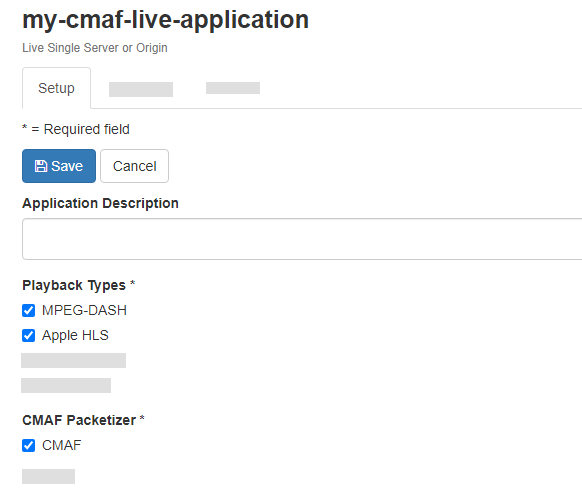
- From the CMAF Packetizer section, click the CMAF option. This enables the CMAF packetizer for your live stream and packages the stream for playback over the Apple HLS and MPEG-DASH protocols. With this setting enabled, these CMAF packetization properties are selected by default.
- Save your changes.
Note: When you enable the CMAF packetizer in Wowza Streaming Engine Manager, you cannot use the standard MPEG-DASH packetizer within the same application. Although the HLS (Cupertino) packetizer can technically run alongside the CMAF packetizer, this configuration is not recommended. If you need to package the same live stream using CMAF as well as the HLS (Cupertino) and MPEG-DASH packetizers, it's best practice to create a separate application for those additional workflows.
Configure a live application to deliver CMAF streams using XML
Use these steps to configure a live application to deliver a CMAF stream using an Application.xml file.
Note: If you're trying to use the CMAF packetizer to deliver LL-HLS and HLS or MPEG-DASH streams, you must use two separate live applications in Wowza Streaming Engine: one configured specifically for LL-HLS and another for CMAF-packetized HLS and MPEG-DASH.
- Navigate to [install-dir]/conf/[application-name] and open Application.xml file in a text editor.
- In the <Streams> container element, make sure the <StreamType> property is live.
<Streams>
    ...
    <StreamType>live</StreamType>
    ...
</Streams>
- Add cmafstreamingpacketizer to the <LiveStreamPacketizers> property. You can add it to the prepopulated comma-separated list, or specify it as the only packetizer. For a workflow that only delivers CMAF streams, the XML looks like this:
<Streams>
    ...
    <LiveStreamPacketizers>cmafstreamingpacketizer</LiveStreamPacketizers>
    ...
</Streams>
Note: When you use the Application.xml to enable the CMAF packetizer, you aren't able to use the MPEG-DASH packetizer at the same time.
- For the HTTPStreamers property, make sure HLS (cupertinostreaming) and/or MPEG-DASH (mpegdashstreaming) is specified.
<!--For HLS-->
<HTTPStreamers>cupertinostreaming</HTTPStreamers>
<!--For MPEG-DASH-->
<HTTPStreamers>mpegdashstreaming</HTTPStreamers>
<!--For HLS and MPEG-DASH-->
<HTTPStreamers>cupertinostreaming, mpegdashstreaming</HTTPStreamers>
- Save your changes.
Your live application is configured to deliver CMAF streams to players. If desired, you can edit the packetization properties. For information, see Configure CMAF live streaming packetization in Wowza Streaming Engine. Otherwise, connect your source encoder to Wowza Streaming Engine and publish the live stream.
Note: If you enable both cupertinostreamingpacketizer and cmafstreamingpacketizer, Wowza Streaming Engine produces two sets of output: MPEG-TS segments (from the Cupertino packetizer) and fMP4 segments (from the CMAF packetizer). However, using both packetizers simultaneously is not recommended.
Similarly, enabling mpegdashstreamingpacketizer together with cmafstreamingpacketizer is not recommended and may lead to unexpected behavior.
Test stream playback
When the camera or encoder is connected, and the live stream is active, preview CMAF playback using a supported test player.
Test CMAF HLS stream playback
To test CMAF-packetized HLS live streams generated by Wowza Streaming Engine, use the Wowza Test Player.
If only cmafstreamingpacketizer is enabled, specify the stream playback URL using the format:
http://[address]/[application-name]/[application-instance]/[stream-name]/playlist.m3u8
If cmafstreamingpacketizer and cupertinostreamingpacketizer are enabled, use the format:
http://[address]/[application-name]/[application-instance]/[stream-name]/playlist_sfm4s.m3u8
Where:
- [address] is the IP address or domain and port of Wowza Streaming Engine (default port 1935)
- [application-name] is the application name
- [application-instance] is the name of the application instance (if omitted, defaults to _definst_)
- [stream-name] is the stream name
So, for example, if only cmafstreamingpacketizer is enabled, the playlist URL for a CMAF HLS stream that uses the address example.com, an application named myApplication, and the default stream name myStream is:
http://example.com:1935/myApplication/myStream/playlist.m3u8
If cmafstreamingpacketizer and cupertinostreamingpacketizer are enabled, the CMAF HLS playlist URL for the same example is:
http://example.com:1935/myApplication/myStream/playlist_sfm4s.m3u8
Test CMAF MPEG-DASH stream playback
To test CMAF-packetized MPEG-DASH live streams generated by Wowza Streaming Engine, you can use the MPEG-DASH test player on the Video Test Players webpage, which is based on the Shaka Player library.
Note: Alternatively, you can test CMAF DASH playback using the Akamai DASH.js test player.
- On the Video Test Players webpage, click the MPEG-DASH tab.
- Enter the CMAF DASH playback URL for your stream using the format:
http://[address]/[application-name]/[application-instance]/[stream-name]/manifest.mpd
Where:
- [address] is the IP address or domain and port of Wowza Streaming Engine (default port 1935)
- [application-name] is the application name
- [application-instance] is the name of the application instance (if omitted, defaults to _definst_)
- [stream-name] is the stream name
For example, the playback URL for an MPEG-DASH stream that uses the address example.com, an application named myApplication, and the default stream name myStream is:
http://example.com:1935/myApplication/myStream/manifest.mpd
- Click Start.





