Use stream files in Wowza Streaming Engine™ media server software to pull and re-stream live sources with the MediaCaster feature. Supported sources include IP cameras (RTSP/RTP), MPEG-TS encoders, native RTP encoders, SHOUTcast and Icecast streams, and Secure Reliable Transport (SRT) streams.
About stream files
WSE stream files (.stream) act as an alias for complex source addresses, such as the URI of an IP camera, MPEG-TS encoder, native RTP encoder, SHOUTcast or Icecast stream, or SRT stream. For example, if your source address on the origin server is udp://0.0.0.0:10000, you can create a stream file named mycoolevent.stream that contains that address. Players can then use mycoolevent.stream in playback URLs instead of the full address. Stream files are stored in the app's streaming file directory.
Before you start
- Create a live streaming app.
Configure Wowza Streaming Engine to re-stream a live stream
- Sign in to Wowza Streaming Engine Manager as an Administrator. You must have administrator privileges to create stream files. For more information, see Manage credentials.
- In the Server contents panel, click Stream Files, and then click Add Stream File.
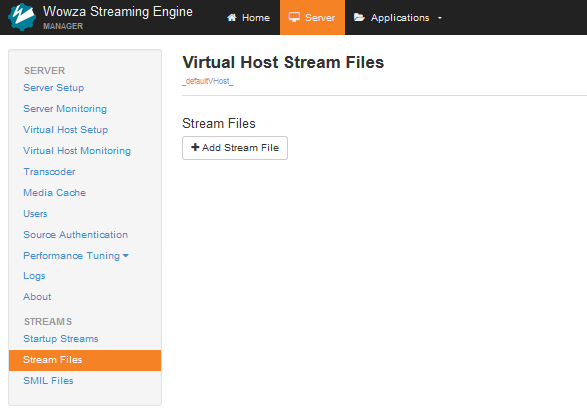
Note: You can also access Stream Files from the contents panel of the selected application. - In the Add Stream File modal, enter a name for the stream file and the URI of the source stream, and then click Add. Note that it is important to use the IP address of the server hosting the stream as the Stream URI.
Note: The Stream URI is formatted srt://0.0.0.0:[port] for pull streams.

- (Optional) Specify per-stream settings. Per-stream settings override those in the application configuration for that stream and apply only to the types of streams identified by the configuration. For more information, see Specify per-stream settings in Wowza Streaming Engine .stream files.
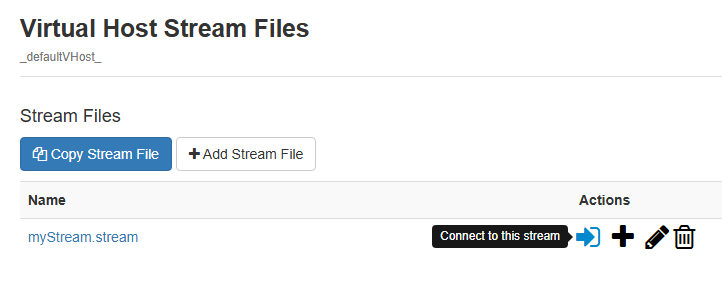
- To start the stream, click the Connect icon to connect to the stream.
- In the Connect a Stream File modal, for Application Name, select the live application that will host the stream.

- For Mediacaster Type, select a MediaCaster type that corresponds to the stream type.
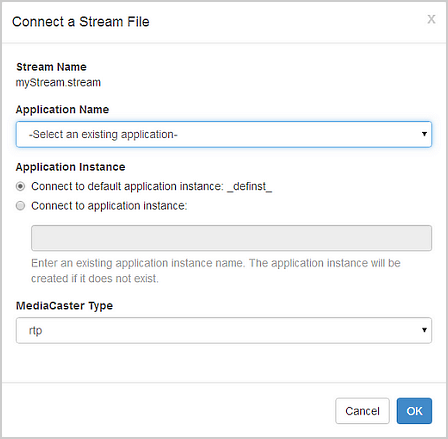
MediaCaster types correspond to the following stream types:
- rtp. IP Camera streams (RTSP/RTP streams) and streams from native RTP and MPEG-TS encoders.
- shoutcast. SHOUTCast/Icecast streams.
- liverepeater. Streams pulled using the RTMP protocol or via the WOWZ protocol from another Wowza Streaming Engine instance.
- applehls (supported in Wowza Streaming Engine 4.5.0.01 and later). Apple HLS streams pulled from a live source.
- mpegtstcp (supported in Wowza Streaming Engine 4.5.0.02 and later). MPEG-TS streams pulled from a live source over a TCP/IP connection.
- srt (supported in Wowza Streaming Engine 4.7.2 and later for Linux and Wowza Streaming Engine 4.7.3 and later for Windows). Secure Reliable Transport (SRT)connections.
- rtp. IP Camera streams (RTSP/RTP streams) and streams from native RTP and MPEG-TS encoders.
- Click OK.
More resources
- Specify per-stream settings in Wowza Streaming Engine .stream files
- Re-stream video from an IP camera (RTSP/RTP re-streaming) in Wowza Streaming Engine
- Re-stream audio from SHOUTcast/Icecast in Wowza Streaming Engine
- Publish and play a live stream (MPEG-TS based encoder) in Wowza Streaming Engine
- Publish and play a live stream (MPEG-TS over TCP/IP) in Wowza Streaming Engine
- Publish and play a live stream (Apple HLS) in Wowza Streaming Engine