The Apple iOS subtitling system uses Web Video Text Tracks (WebVTT), which provides more flexibility than CEA-608/708 closed captioning for rendering multiple languages, including languages that CEA-608/708 doesn't support on iOS.
This article describes how to configure Wowza Streaming Engine™ (WSE) media server software to convert closed captioning data in video-on-demand (VOD) and live streams to WebVTT subtitles for playback on Apple iOS devices.
Configure WebVTT for VOD streams
This section describes how to configure WSE to convert VOD stream captions to WebVTT. You can configure WebVTT captions for VOD streams in WSE Manager or by directly editing the app's Application.xml configuration file.
To enable WebVTT subtitles for a VOD stream, you must configure the cupertinoVODCaptionsUseWebVTT property for the VOD app and include a WebVTT-formatted companion file with the VOD asset.
Configure WebVTT in WSE Manager
Follow the steps below to configure WebVTT captions for VOD streams in WSE Manager.
- Click the Applications tab.
- In the contents panel, click the name of your VOD app.
- Click the Properties tab.
- In the Quick Links bar, click Closed Captions.
- Click Edit.
- Scroll to the
cupertinoVODCaptionsUseWebVTTproperty:- Check the box to enable the property.
- Set the property value to
true.
- Click Save.
- Restart the app.
Configure WebVTT in Application.xml
Follow the steps below to configure WebVTT captions for VOD streams by editing an app's Application.xml configuration file.
- Open the
[install-dir]/conf/[vod-app-name]/Application.xmlfile. - Locate the
<Application>/<TimedText>/<Properties>container. - Copy the following property into the container:
<Property>
  <Name>cupertinoVODCaptionsUseWebVTT</Name>
  <Value>true</Value>
  <Type>Boolean</Type>
</Property>
- Save the file.
- Restart Wowza Streaming Engine.
Play VOD streams with WebVTT subtitles
This section describes different methods to test playback for VOD streams with WebVTT subtitles.
Play using an Apple iOS device
Note: To play your own content, copy your file into the[install-dir]/contentfolder and substitute its file name forsample.mp4in the sample URLs below.
In Safari on the device, enter the following URL:
http://[wowza-ip-address]:1935/[application-name]/mp4:sample.mp4/playlist.m3u8
Play embedded in HTML on an Apple iOS device
In Safari on the device, enter the URL of the webpage. For example:
http://[domain]/index.html
The webpage should have an embedded <video> element defined, for example:
<video src="http://[wowza-ip-address]:1935/myApplication/mp4:sample.mp4/playlist.m3u8" controls>
Play using a SMIL file
To play adaptive bitrate streams using a SMIL file, the captions can be added to the SMIL file using a single textstream container element. For example, create a vod.smil file with the following content:
<smil>
  <head>
  </head>
    <body>
      <switch>
        <video src="mp4:sample.mp4" system-bitrate="300000" width="424" height="240">
          <param name="videoCodecId" value="avc1.66.30" valuetype="data"/>
          <param name="audioCodecId" value="mp4a.40.2" valuetype="data"/>
        </video>
        <video src="mp4:sample2.mp4" system-bitrate="500000" width="424" height="240">
          <param name="videoCodecId" value="avc1.66.30" valuetype="data"/>
          <param name="audioCodecId" value="mp4a.40.2" valuetype="data"/>
        </video>
        <textstream src="sample.vtt" system-language="eng,fra">
          <param name="isWowzaCaptionStream" value="true" valuetype="data"></param>
        </textstream>
      </switch>
    </body>
</smil>
Then, in Safari on the device, enter the following URL:
http://[wowza-ip-address]:1935/[application-name]/smil:vod.smil/playlist.m3u8
Configure WebVTT for live streams
This section describes how to configure WSE to convert live stream captions to WebVTT. You can configure WebVTT captions for live streams in WSE Manager or by directly editing the app's Application.xml configuration file.
The inbound live stream must contain proper Action Message Format (AMF) onTextData events for any specified languages. This provides the captions to the stream, which are then converted to WebVTT subtitles. For more information about how to set up live closed captioning for WebVTT output, see:
- Configure CEA-608/708 captions for WebVTT output in live streams
- Configure onTextData captions for WebVTT output in live streams
Note: If you're setting up this WebVTT workflow with Azure's AI Speech Services, ensure your application is configured using the captionLiveIngestLanguages property and two-letter (ISO 639-1) language codes. Azure doesn't accept three-letter ISO 639-2/3 codes. For more, see Convert speech to text to generate live stream captions with Azure AI Speech Services.
Override live caption ingest behavior using a SMIL file
If a live stream is published with a SMIL file, the SMIL file can specify the caption information for the inbound stream. The values in the SMIL file take precedence over the properties specified in Wowza Streaming Engine or in the Application.xml file. The SMIL file must be added to the [install-dir]/content folder for your Wowza Streaming Engine installation. For more, see Understanding SMIL file syntax.
In the following example SMIL file, the textstream container element identifies that the incoming published stream contains captions:
<smil>
  <head>
  </head>
  <body>
    <switch>
      <video src="myStream" system-bitrate="500000"/>
      <textstream src="myStream" system-language="eng,fra">
        <param name="isWowzaCaptionStream" value="true" valuetype="data"></param>
        <param name="wowzaCaptionIngestType" value="onTextData" />
      </textstream>
    </switch>
  </body>
</smil>
Each attribute or value in the previous code snippet can be described as follows:
srcmatches a source stream that's published via thevideotag.system-languageis a comma-separated list of ISO 639 three-letter language codes. The incoming stream should contain captions in the specified language(s).
Note: If you're using a SMIL file for playback while leveraging Azure's AI Speech Services, make sure the system-language is set using two-letter (ISO 639-1) language codes. Azure doesn't accept three-letter ISO 639-2/3 codes.
isWowzaCaptionStreamis set totrueto indicate that the stream has live captions to be ingested.wowzaCaptionIngestTypeidentifies where the captions are found in the stream. The only supported value isonTextData, which denotes that captions are found in AMFonTextDataevents.
To output WebVTT subtitles, you can also use a SMIL file with multiple textstream containers such as this:
<smil>
  <head>
  </head>
  <body>
    <switch>
      <video src="mp4:myStream" system-bitrate="450000">
        <param name="cupertinoTag.SUBTITLES" value="subs" valuetype="data"/>
      </video>
      <textstream src="mp4:myStream" system-language="eng">
        <param name="isWowzaCaptionStream" value="true" valuetype="data"/>
        <param name="cupertinoTag.TYPE" value="SUBTITLES" valuetype="data"/>
        <param name="cupertinoTag.GROUP-ID" value="subs" valuetype="data"/>
        <param name="cupertinoTag.DEFAULT" value="YES" valuetype="data"/>
        <param name="cupertinoTag.FORCED" value="NO" valuetype="data"/>
      </textstream>
      <textstream src="mp4:myStream" system-language="spa">
        <param name="isWowzaCaptionStream" value="true" valuetype="data"/>
        <param name="cupertinoTag.TYPE" value="SUBTITLES" valuetype="data"/>
        <param name="cupertinoTag.GROUP-ID" value="subs" valuetype="data"/>
        <param name="cupertinoTag.DEFAULT" value="NO" valuetype="data"/>
        <param name="cupertinoTag.FORCED" value="NO" valuetype="data"/>
      </textstream>
      <textstream src="mp4:myStream" system-language="fra">
        <param name="isWowzaCaptionStream" value="true" valuetype="data"/>
        <param name="cupertinoTag.TYPE" value="SUBTITLES" valuetype="data"/>
        <param name="cupertinoTag.GROUP-ID" value="subs" valuetype="data"/>
        <param name="cupertinoTag.DEFAULT" value="NO" valuetype="data"/>
        <param name="cupertinoTag.FORCED" value="NO" valuetype="data"/>
      </textstream>
    </switch>
  </body>
</smil>
With either of the previous SMIL files present in the [install-dir]/content folder for your WSE instance, you can play back your live stream using the following URL format:
http://[wowza-ip-address]:1935/[application-name]/smil:[name-of-smil-file].smil/playlist.m3u8
Note: The examples in this section don't cover playing adaptive bitrate streams using a SMIL file.
Enable debug logging for live WebVTT streaming
To enable additional debug logging when live captions are ingested, you can set the debugCaptionLiveIngest property for your live application either in Wowza Streaming Engine Manager or directly in the Application.xml file.
Enable debug logging in WSE Manager
Follow the steps below to enable debug logging for live WebVTT streaming in WSE Manager.
- Open WSE Manager.
- Click the Applications tab.
- In the contents panel, click the name of your live app.
- Click the Properties tab.
- In the Quick Links bar, click Custom.
- Click Edit.
- Click Add Custom Property.
- Enter the following information in the Add Custom Property dialog box:
- In Path, select
/Root/Application/TimedText. - In Name, enter
debugCaptionLiveIngest. - In Type, select
Boolean. - In Value, select
true.
- In Path, select
- Click Add, then click Save, and then restart the application when prompted to apply the changes.
Enable debug logging by configuring Application.xml
Follow the steps below to enable debug logging for live WebVTT streaming by editing the app's Application.xml configuration file.
- Open the
[install-dir]/conf/[live-app-name]/Application.xmlfile. - Locate the
<Application>/<TimedText>/<Properties>container. - Copy the following property into the container:
<Property>
  <Name>debugCaptionLiveIngest</Name>
  <Value>true</Value>
  <Type>Boolean</Type>
</Property>
- Save the file.
- Restart Wowza Streaming Engine.
Play live streams with WebVTT subtitles
Play using an Apple iOS device
In Safari, enter the following URL:
http://[wowza-ip-address]:1935/[application-name]/myStream/playlist.m3u8
Play embedded in HTML on an Apple iOS device
In Safari, enter the URL of the webpage. For example:
http://[domain]/index.html
The webpage should have an embedded <video> element defined, for example:
<video src="http://[wowza-ip-address]:1935/myApplication/myStream/playlist.m3u8" controls>
Play using a SMIL file
To play adaptive bitrate streams using a SMIL file, the captions can be added to the SMIL file using a single textstream container element. For example, create a live.smil file with the following content:
<smil>
  <head>
  </head>
  <body>
    <switch>
      <video src="myStream1" system-bitrate="685362" width="424" height="240">
        <param name="videoCodecId" value="avc1.66.30" valuetype="data"/>
        <param name="audioCodecId" value="mp4a.40.2" valuetype="data"/>
      </video>
      <video src="myStream1" system-bitrate="64000">
        <param name="audioOnly" value="TRUE" valuetype="data"/>
      </video>
      <video src="myStream2" system-bitrate="385362" width="424" height="240">
        <param name="videoCodecId" value="avc1.66.30" valuetype="data"/>
        <param name="audioCodecId" value="mp4a.40.2" valuetype="data"/>
      </video>
      <textstream src="myStream1" system-language="eng,kor">
        <param name="isWowzaCaptionStream" value="true" valuetype="data"></param>
        <param name="wowzaCaptionIngestType" value="onTextData" />
      </textstream>
    </switch>
  </body>
</smil>
Then, in Safari, enter the following URL:
http://[wowza-ip-address]:1935/[application-name]/smil:live.smil/playlist.m3u8
Locate the subtitle icon in the Apple iOS player
Follow the steps below to locate the subtitle icon in Apple iOS players.
- Orient the device to landscape mode.
- Tap the Full screen icon.
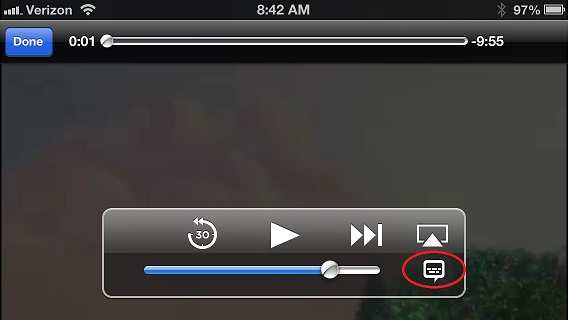
- Tap the screen to display the control menu. A subtitle icon should be available to the right of the seek bar.
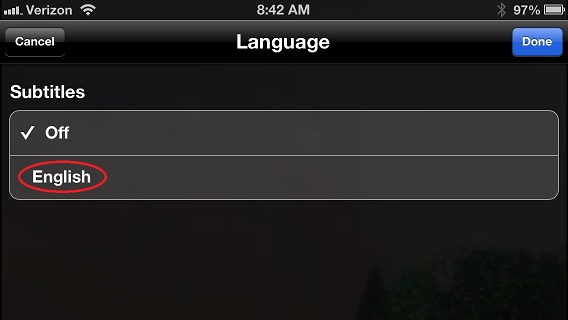
- Tap the subtitle icon and choose a language.
WebVTT properties reference
The following properties can be added to the <Application>/<TimedText>/<Properties> container of an app's Application.xml configuration file.
Control WebVTT output
webVTTCaptionConverterEscapeCharacters: StringThe characters WSE replaces with character references when writing WebVTT caption text. List the characters with no separators, for example<&. WSE leaves valid WebVTT tags (such as<i>,<c.yellow>,<v Speaker>, and timestamp tags) and existing character references (such as&) unchanged. Leave the value empty to turn off escaping.
Note: To include characters that have special meaning in XML, such as<,>, and&, wrap the value in a CDATA section or write the characters as XML entities (<,>,&).
Default:<<!-- Example webVTTCaptionConverterEscapeCharacters property --> <TimedText> <Properties> <!-- Escape <, >, and & when converting captions to WebVTT --> <Property> <Name>webVTTCaptionConverterEscapeCharacters</Name> <Value><![CDATA[<>&]]></Value> <Type>String</Type> </Property> </Properties> </TimedText>webVTTCaptionConverterApplyStyle: BooleanWhentrue, WSE adds color from the incoming captions to WebVTT output as<c.color>tags. For example, DVB Teletext colors are included whenmpegtsDVBTeletextPreserveColoristrue. Whenfalse, WSE writes plain text.
Default:falsewebVTTCaptionConverterInsertErases: BooleanWhentrue, WSE adds an empty caption in the gaps between captions and after the last caption to clear the previous caption from the screen.
Default:false
More resources
- Configure closed captioning for Wowza Streaming Engine video-on-demand streams
- Configure closed captioning for Wowza Streaming Engine live streams
- Stream adaptive bitrate content with Wowza Streaming Engine
- Start streams when Wowza Streaming Engine starts
- W3C Web Video Text Tracks (WebVTT) specification