Stream targets in the Wowza Streaming Engine™ media server software allow you to send live streams to widely distributed destinations. With a WebRTC WHIP stream target, WSE acts as a WebRTC-HTTP Ingestion Protocol (WHIP) client and publishes a live stream to any external WHIP endpoint, such as a CDN, a media server, or another WSE instance.
WebRTC WHIP stream targets are only available in WSE 4.12+ with the current WebRTC implementation. They aren't supported on the legacy implementation, which remains available for other workflows.
Prerequisites
- A live WSE app with WebRTC and stream targets enabled
- A source stream that uses supported audio and video codecs
- The destination's WHIP endpoint URL, along with any required authentication
Create a WHIP stream target
This article explains how to create a WHIP stream target in WSE Manager. (If preferred, you can also create a stream target using the WSE REST API or by adding an entry to the PushPublishMap.txt file using the webrtc-whip profile parameters.)
- Open WSE Manager.
- In the contents panel, click Stream Targets.
- Click + Add Stream Target.
- Under Generic Target Destinations, select the WebRTC WHIP setup wizard.
- Provide the following information:
- Stream Target Name: A descriptive name for this target setup in WSE. The name must be unique and cannot contain any of the following characters:
<,>,:,',",/,\,|,?,*,..,~. - Source Stream Name: The name of the incoming source stream that will be sent to the destination.
- Destination Stream Name: The name of the stream that you provisioned at this stream target's destination. The stream target will send the stream with this stream name.
-
- Stream Target Name: A descriptive name for this target setup in WSE. The name must be unique and cannot contain any of the following characters:
- Click Add this target.
If the connection to the WHIP endpoint drops, the stream target reconnects on its own. The wait between attempts starts at the target's reconnect wait time, or 3 seconds if none is set, and grows by half after each failure, up to 60 seconds. If the source stream is audio-only, WSE detects that and connects without waiting for video.
Enable stream targets
Before streaming, WSE stream targets must be enabled.
- In the contents panel of your application, if you don't see a checkmark next to Stream Targets, click Stream Targets in the contents panel and then click Enable Stream Targets.
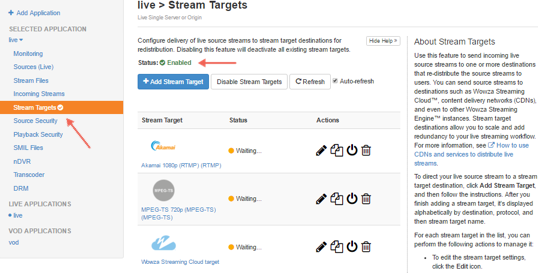
When Stream Targets is enabled, a checkmark appears next to Stream Targets in the contents panel and the Stream Targets page shows Status is Enabled.
- If the Status of an individual stream target is Disabled, click the Enable icon for the stream in the Actions column.
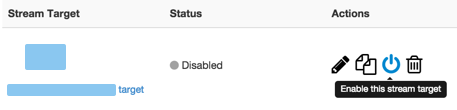
- When prompted, click Restart Now so your change takes effect.
When a stream target is enabled, its status on the Stream Targets page is one of the following:
- Waiting. The target is enabled but not yet pushing the stream to the destination, because either the target's source stream isn't connected to WSE or WSE hasn't finished connecting to the WHIP endpoint.
- Active. The stream is being pushed to the configured Destination URL.
- Error. WSE couldn't push the stream to the configured Destination URL. Make sure the source stream is connected and uses supported codecs, and that the endpoint URL and authentication settings are correct.
The status of each stream target updates automatically if your application has fewer than 100 stream targets. If your application has more than 100 stream targets, click Refresh to update the status.
Stream target parameters
asdf
Test the connection
- Start the stream in the camera or encoder that's sending the stream to your application in WSE. The application ingests the live stream and publishes it to the WHIP endpoint.
- In Wowza Streaming Engine Manager, verify that the stream is working:
- Click Incoming Streams in the contents panel and then click the stream name. The stream detail page shows the Status of the stream (Active) and details about connections, uptime, and throughput.
- Click Stream Targets in the contents panel. The Status of the target should be Active.
- Verify that your WHIP destination is receiving and playing the stream.
- Stop the stream in the camera or encoder to end your test.
If the target stays in Waiting or shows Error, check the WSE logs for PushPublishWhip and WebRTCWHIPPushConfig warnings. They report missing or malformed endpoint URLs, missing tokens or headers, invalid values that fell back to defaults, and loopback address problems. For more, see Debug Stream Targets (push publishing).