
Wowza Streaming Engine™ media server software can take any captioning data embedded in a source stream and pass it through in a live stream output. It can also ingest caption data and convert it to the appropriate captioning format for live streaming using the HTTP Live Streaming (HLS), Dynamic Adaptive Streaming over HTTP (MPEG-DASH), and Real-Time Messaging Protocol (RTMP) protocols.
The information on this page applies to CEA-608, CEA-708, and WebVTT caption workflows that use one of the following packetization formats:
- HLS (MPEG-TS), used exclusively for HLS output.
- CMAF (fMP4), which can be delivered over either HLS or MPEG-DASH.
- Caption delivery over Low-Latency HLS (LL-HLS) is partially supported. For more details, see the Supported caption translations matrix.
Many player technologies, set-top boxes, and over-the-top (OTT) players can display CEA-608/708 closed captioning data embedded in live streams. Other player technologies can only display AMF onTextData captioning data.
Notes:
- Please check with your player first to confirm support for CEA-708 embedded captions for live streams. Not all web-based HTML5 players fully support CEA-708 embedded captions currently.
- Wowza Flowplayer doesn't support output for embedded CEA-708 captions in live streams. With web-based players, we recommend using WebVTT captions instead of embedded captions. For more, see Configure CEA-608/708 captions for WebVTT output and Configure onTextData captions for WebVTT output.
Before you start
Before you start working with caption configurations for live streams in Wowza Streaming Engine, follow these steps to create a live application in Wowza Streaming Engine. It may be helpful to also review the following resources:
- About closed captioning in Wowza Streaming Engine
- Upgrade closed captions for live streams in Wowza Streaming Engine 4.9.2
Note: A SMIL file is recommended to define media playback details for your CEA-608/708 captions when using adaptive bitrate (ABR) streaming. This allows the captions to be clearly identified in the player UI and captions menu. For more, see Understanding SMIL file syntax.
We found this test media with embedded CEA-608 and CEA-708 captions helpful during testing.
Supported caption types
Various closed-caption sources are available, and each streaming standard may use a different format for embedding captions in the output. Wowza Streaming Engine supports the following input sources and output formats for closed captions in live streams.
Supported input sources
The following input sources are supported for closed captioning with live streams in Wowza Streaming Engine:
- CEA-608/708 captions embedded in live streams.
- Action Message Format (AMF) onTextData captions embedded in input streams.
- AMF onCaption and onCaptionInfo captions embedded in input streams.
We provide an example module that uses the Wowza Streaming Engine Java API to insert onTextData into a stream.
Supported outputs
The following output formats can be translated from any of the supported input sources for live streams in Wowza Streaming Engine:
- onTextData events in RTMP live streams.
- CEA-608/708 formatted SEI data in the video track of any live stream. This page focuses on CEA-608/708 captioning output in HLS, CMAF-packetized HLS, CMAF-packetized MPEG-DASH, CMAF-packetizer LL-HLS, and RTMP live streams.
- WebVTT text tracks in HLS, CMAF-packetized HLS, and CMAF-packetized MPEG-DASH live streams.
Supported caption translations
The table in this section summarizes the input-to-output caption translations that are supported by Wowza Streaming Engine. Each cell in the matrix lists the delivery protocol that supports the caption conversion. You can reference the following legend to better understand these values, which are used as a shorthand throughout this page:
- HLS: Packaged with the cupertinostreamingpacketizer for delivery over the HLS (MPEG-TS) protocol.
- CMAF HLS: Packaged with the cmafstreamingpacketizer for delivery over the HLS (fMP4) protocol.
- CMAF MPEG-DASH: Packaged with the cmafstreamingpacketizer for delivery over the MPEG-DASH (fMP4) protocol. Wowza Streaming Engine doesn't support captions when a stream is packaged with the standard MPEG-DASH packetizer for delivery over the MPEG-DASH protocol.
- CMAF LL-HLS: Packaged with the cmafstreamingpacketizer for delivery over LL-HLS.
- RTMP: Delivered over the RTMP protocol.
|
Output →
Ingest ↓ |
AMF onTextData | CEA-608 |
CEA-708 | WebVTT |
| AMF onTextData | RTMP | HLS CMAF HLS CMAF MPEG-DASH CMAF LL-HLS RTMP |
HLS CMAF HLS CMAF MPEG-DASH CMAF LL-HLS RTMP |
HLS CMAF HLS CMAF MPEG-DASH |
| AMF onCaption | RTMP | HLS CMAF HLS CMAF MPEG-DASH RTMP |
HLS CMAF HLS CMAF MPEG-DASH RTMP |
HLS CMAF HLS CMAF MPEG-DASH |
| CEA-608 | RTMP | HLS CMAF HLS CMAF MPEG-DASH CMAF LL-HLS RTMP |
HLS CMAF HLS CMAF MPEG-DASH CMAF LL-HLS RTMP |
HLS CMAF HLS CMAF MPEG-DASH |
| CEA-708 | RTMP | HLS CMAF HLS CMAF MPEG-DASH CMAF LL-HLS RTMP |
HLS CMAF HLS CMAF MPEG-DASH CMAF LL-HLS RTMP |
HLS CMAF HLS CMAF MPEG-DASH |
To learn more about packetization in Wowza Streaming Engine, see:
- About HTTP streaming and packetization in Wowza Streaming Engine
- About playback URLs for HLS live streams
- About playback URLs for MPEG-DASH live streams
Ingest and configure CEA-608/708 captions for live streams
This section explains how to set up your live application to monitor live streams with embedded CEA-608/708 captions, decode the captions, and pass them through or convert them to WebVTT captions in the output of a live stream.
Due to the differing nature of CEA-608/708 captions versus captions in a streaming server, some caption modes are decoded more efficiently than others. Pop-on captions that appear anywhere on the screen as a whole, followed by another caption or no captions, are generally best. Other caption modes, such as scroll-up captions that draw directly to the screen, may exhibit some delay. This is because CEA-608/708 captions are drawn directly to the device, while Wowza Streaming Engine must detect the end of each caption to capture it and send it with the outgoing stream.
When considering how to send captions to Wowza Streaming Engine in live streams:
- Use pop-on captions where possible.
- If using other caption modes, minimize the amount of time between the start of the caption drawing and the end of the caption.
Configure CEA-608/708 captions for output in live streams
Wowza Streaming Engine provides passthrough support for CEA-608/708 captions embedded in live streams. Use these steps to additionally configure a live stream with:
- Embedded CEA-608 captions and add language labels for Track 1 (CC1) and Track 3 (CC3) in your HLS, CMAF HLS, CMAF MPEG-DASH, and CMAF LL-HLS stream outputs.
- Embedded CEA-708 captions and add language labels for multiple caption tracks in your HLS, CMAF HLS, CMAF DASH, and CMAF LL-HLS stream outputs.
Note: Access to the Properties tab is limited to administrators with advanced permissions. For more information, see Manage credentials.
- In Wowza Streaming Engine Manager, click the Applications tab.
- Select your live application from the list.
- On the Setup tab, you can select Apple HLS or MPEG-DASH from the Playback Types. You can also use the CMAF packetizer depending on your workflow.
- Click Edit on the Setup tab.
- Scroll to the Closed Captions section.
- Select the Ingest embedded CEA-608/708 captions in live streams radio button to enable the ModuleCEAToOnTextData module.
- Click Save and restart the application.
- On the Properties tab for your application, go to the Closed Captions properties section. Click Edit, and add one of these closed captioning properties depending on your workflow. Then Save.
| Name | Type | Value | Description |
| closedCaptionLive608LanguageMapping | String | 1:eng,3:fra | Required only for CEA-608 output. Creates a comma-separated mapping of CEA-608 (CC1-CC3) channels to their corresponding three-character ISO-639 language codes during live stream ingest and output. For example, add 1:eng,3:fra. Default value is 1:eng. |
| closedCaptionLive708LanguageMapping | String | 1:eng,2:spa,3:fra | Required only for CEA-708 output. Creates a comma-separated mapping of CEA-708 service numbers to three-character ISO-639 language codes during live stream ingest and output. For example, add 1:eng,2:spa,3:fra (and to accommodate the SMIL file in step 10). The default value is 1:eng. |
| httpLiveCaptionsUseCEA608 | Boolean | true | Required only for CEA-608 input. When set to true, signals to the playlist generator that the source stream contains embedded CEA-608 captions so they can be passed to the player. Wowza Streaming Engine adds the CLOSED-CAPTIONS tags in the HLS master playlist or the Accessibility element to the MPEG-DASH manifest. The default value is false. |
| httpLiveCaptionsUseCEA708 | Boolean | true | Required only for CEA-708 input. When set to true, signals to the playlist generator that the source stream contains embedded CEA-708 captions so they can be passed to the player. Wowza Streaming Engine adds the CLOSED-CAPTIONS tags in the HLS master playlist or the Accessibility element in the MPEG-DASH manifest. The default value is false. |
- (Optional) On the Properties tab for your application, go to the Closed Captions properties section. Click Edit, and add these closed captioning properties when applicable. Then Save.
|
Name
|
Type |
Description
|
| captionLiveIngestLanguages | String | Specifies, in ISO-639, what subtitle languages are expected to be delivered. For example, eng,spa,fra with the SMIL file in step 10. If not specified, the language defaults to the Wowza Streaming Engine server locale. This property is optional when using a SMIL file with textstream tags. |
| captionUndefinedLanguageId | String | The language code to use for the caption if the provided language ID isn't recognized. For example, eng. If not specified, this value defaults to the server's three-letter locale. |
| ccIngestCEA608EnableField1 | Boolean | Specifies if CEA-608 field 1 is enabled. The default value is true (enabled). Typically, only one of fields 1 and 2 is enabled, not both. |
| ccIngestCEA608EnableField2 | Boolean | Specifies if CEA-608 field 2 is enabled. The default value is false (disabled). |
| ccIngestCEALogCaptions | Boolean | Specifies if the parsed CEA-608/708 captions are logged. The default value is false (disabled). |
| ccIngestCEAVerboseLogging | Boolean | Enables verbose logging of the CEA-608/708 parser. The default value is false (disabled). |
- After adding all properties, click Save and restart your application.
- (Optional) To configure the player for CEA-608/708 output and adaptive bitrate streaming, you can also create a myStream_608_708.smil file. Then add the myStream_608_708.smil file to the [install-dir]/content folder for your Wowza Streaming Engine installation:
<smil>
  <head>
  </head>
    <body>
      <switch>
	<video src="mp4:myStream" system-bitrate="450000">
	  <param name="cupertinoTag.CLOSED-CAPTIONS" value="captions" valuetype="data"/>
	</video>
	<textstream src="mp4:myStream" system-language="eng">
	  <param name="iswowzacaptionstream" value="true" valuetype="data"/>
	  <param name="cupertinoTag.TYPE" value="CLOSED-CAPTIONS" valuetype="data"/>
	  <param name="cupertinoTag.GROUP-ID" value="captions" valuetype="data"/>
	  <param name="cupertinoTag.DEFAULT" value="YES" valuetype="data"/>
	  <param name="cupertinoTag.FORCED" value="NO" valuetype="data"/>
	  <param name="cupertinoTag.INSTREAM-ID" value="SERVICE1" valuetype="data"/>
	</textstream>
        <textstream src="mp4:myStream" system-language="spa">
	  <param name="iswowzacaptionstream" value="true" valuetype="data"/>
	  <param name="cupertinoTag.TYPE" value="CLOSED-CAPTIONS" valuetype="data"/>
	  <param name="cupertinoTag.GROUP-ID" value="captions" valuetype="data"/>
	  <param name="cupertinoTag.DEFAULT" value="YES" valuetype="data"/>
	  <param name="cupertinoTag.FORCED" value="NO" valuetype="data"/>
	  <param name="cupertinoTag.INSTREAM-ID" value="SERVICE2" valuetype="data"/>
	</textstream>
	<textstream src="mp4:myStream" system-language="fra">
	  <param name="iswowzacaptionstream" value="true" valuetype="data"/>
	  <param name="cupertinoTag.TYPE" value="CLOSED-CAPTIONS" valuetype="data"/>
	  <param name="cupertinoTag.GROUP-ID" value="captions" valuetype="data"/>
	  <param name="cupertinoTag.DEFAULT" value="YES" valuetype="data"/>
	  <param name="cupertinoTag.FORCED" value="NO" valuetype="data"/>
	  <param name="cupertinoTag.INSTREAM-ID" value="SERVICE3" valuetype="data"/>
	</textstream>
      </switch>
    </body>
</smil>
- Start a stream and send it to your Wowza Streaming Engine server. For more about publishing live streams, see Connect a live source to Wowza Streaming Engine.
- To test playback for CEA-608 captions, use Wowza Test Player and add these playback URLs depending on your use case:
| Use case | Playback URL |
| HLS, CMAF HLS output |
http://[ip-address]:1935/[application-name]/myStream/playlist.m3u8 |
| CMAF MPEG-DASH output | http://[ip-address]:1935/[application-name]/myStream/manifest.mpd |
| CMAF LL-HLS | http://[ip-address]:1935/[application-name]/myStream/playlist.m3u8 |
| SMIL file output | http://[ip-address]:1935/[application-name]/myStream_608_708.smil/playlist.m3u8 |
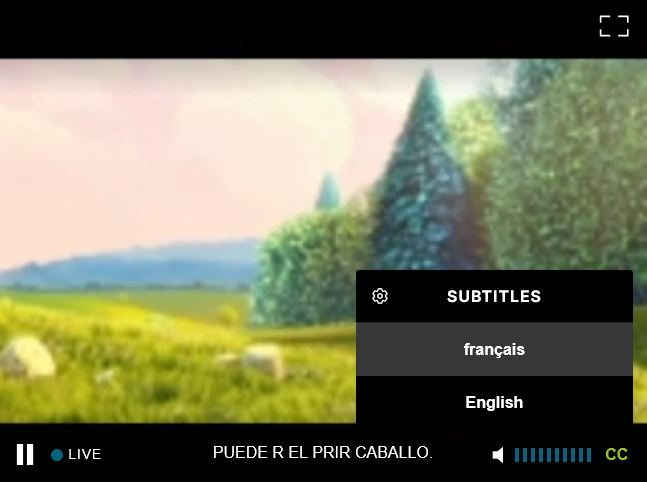
- To test playback for CEA-708 captions, use this test player and add these playback URLs depending on your use case:
Note: Wowza Flowplayer doesn't currently support output for embedded CEA-708 captions in live streams.
| Use case | Playback URL |
| HLS, CMAF HLS output |
http://[ip-address]:1935/[application-name]/myStream/playlist.m3u8 |
| CMAF MPEG-DASH output | http://[ip-address]:1935/[application-name]/myStream/manifest.mpd |
| CMAF LL-HLS | http://[ip-address]:1935/[application-name]/myStream/playlist.m3u8 |
| SMIL file output | http://[ip-address]:1935/[application-name]/myStream_608_708.smil/playlist.m3u8 |

Configure CEA-608/708 captions for WebVTT output in live streams
With Wowza Streaming Engine, you can ingest a live stream with embedded CEA-608/708 captions and output WebVTT captions in your live streams. For a cleaner display of the WebVTT captions in the generated live stream, we recommend removing the embedded CEA-608/708 captions.
For more information about using a SMIL file with this workflow, see Override live caption ingest behavior using a SMIL file.
Note: Access to the Properties tab is limited to administrators with advanced permissions. For more information, see Manage credentials.
- In Wowza Streaming Engine Manager, click the Applications tab.
- Select your live application from the list.
- On the Setup tab, you can select Apple HLS or MPEG-DASH from the Playback Types. You can also use the CMAF packetizer depending on your workflow.
- Click Edit on the Setup tab.
- Scroll to the Closed Captions section.
- Select the Ingest embedded CEA-608/708 captions in live streams radio button to enable the ModuleCEAToOnTextData module.
- Click Save and restart the application.
- Go to the Properties tab for your application.
- In the Closed Captions properties section, click Edit.
- Enable the properties in the following table and set their values as suggested. Then Save.
| Name | Type | Value | Description |
| captionLiveIngestLanguages | String | eng,spa,fra | Specifies, in ISO-639, what subtitle languages are expected to be delivered. For example, eng,spa,fra. If not specified, the language defaults to the Wowza Streaming Engine server locale. This property is optional when using a SMIL file with textstream tags. |
| ccIngestEnableCEA708 | Boolean | true | Required only for CEA-708 input. Enables parsing of the embedded CEA-708 captions during live stream ingest and converts them into onTextData events in the live stream outputs. The default value is false. |
| closedCaptionLive708LanguageMapping | String | 1:eng,2:spa,3:fra | Required only for CEA-708 input. Creates a comma-separated mapping of CEA-708 service numbers to convert them to three-character ISO-639 language codes during live stream ingest. The default value is 1:eng. |
| httpLiveCaptionsUseWebVTT | Boolean | true | Specifies if live AMF onTextData events are converted to WebVTT subtitle format. If enabled (true), WebVTT subtitles are created. If disabled (false), CEA-608 captions are created. This is a new property introduced with Wowza Streaming Engine 4.9.7, which deprecates the cupertinoLiveCaptionsUseWebVTT property. |
- Go to the Custom properties section and click Edit.
- Enable the property in the following table and set its value as suggested. We recommend setting this property to avoid duplicate captions in the player UI. Set the path to /Root/Application/TimedText. Then Save.
| Name | Type | Value | Description |
| ccIngestCEARemoveExistingCEA | Boolean | true | Works with the ModuleCEAToOnTextData module to remove ingested CEA-608/708 captions when generating onTextData events. This prevents captions from being duplicated in the player's output. The default value (false) preserves the ingested CEA-608/708 captions in the transcoded output. To remove the existing CEA-608/708 captions, set to true. |
- (Optional) On the Properties tab for your application, go to the Closed Captions property section. Click Edit, and add this closed captioning property when applicable. Then Save.
| Name | Type | Description |
| webVTTPreferredSource | String | Determines CEA-608/708 subtitle preferences in WebVTT outputs when ingested live streams contain embedded CEA-608 and CEA-708 subtitles for the same language. Possible values are CEA608 or CEA708. |
- After setting all properties, restart your application.
- Start a stream and send it to your Wowza Streaming Engine server. For more about publishing live streams, see Connect a live source to Wowza Streaming Engine.
- To test playback, open Wowza Test Player and add the following playback URLs depending on your use case:
| Use case | Playback URL |
| HLS, CMAF HLS output |
http://[ip-address]:1935/[application-name]/myStream/playlist.m3u8 |
| CMAF MPEG-DASH output | http://[ip-address]:1935/[application-name]/myStream/manifest.mpd |

Note: You can confirm the presence of the generated WebVTT files in your browser's Network panel.
Ingest and configure AMF onTextData captions for live streams
This section explains how to set up your live application to monitor live streams with embedded AMF onTextData captions, decode the captions, and either convert them to CEA-608/708 captions or WebVTT captions in the output of a live stream.
AMF onTextData events are commonly associated with RTMP and used to carry closed caption or subtitle information. An onTextData event usually includes the following fields:
- text – Carries the UTF-8 encoded text for the event.
- lang – The three-letter language ID for the event, for example, eng.
- trackid – (Optional) For on-demand streaming, this is the ID of the text track in the video file. For live streaming, this field is either omitted or set to 99.
The live application in Wowza Streaming Engine monitors a live stream for onTextData events, extracts the text field, formats it as CEA-608/708 closed-caption data, and injects it into the video stream as SEI NAL units. Many player technologies, set-top boxes, and OTT players can then display the embedded closed-captioning data.
Example module for publishing onTextData captions
Usually, onTextData events are published by an external source. But you can use the Wowza Streaming Engine Java API to inject onTextData events into live streams using the IMediaStream.sendDirect() call.
We provide an example module that enables a publisher that passes closed-caption data as timed text events or SMPTE events to use the Wowza Streaming Engine Java API to inject onTextData into a live stream. The onTextData is intercepted and injected into the stream as CEA-608/708 events.
You can download this PublishOnTextData.zip package with the example ModulePublishOnTextData module and use it to insert onTextData events into your live streams. The module takes caption data from a flat text file and injects an onTextData event into the live stream every 6.5 seconds.
This module is for testing purposes only and demonstrates injecting onTextData events into a live stream. It only supports sending onTextData events for a single language. If you use multiple languages in your onTextData workflows, modify this module and add several ontextdata.txt files to match your output in the [install-dir]/content folder. For example, ontextdata_eng.txt, ontextdata_fra.txt, and ontextdata_spa.txt.
Configure onTextData captions for CEA-608 output in live streams
With Wowza Streaming Engine, you can ingest a live stream with embedded onTextData events and output CEA-608 captions in your live streams. The inbound live stream must contain proper Action Message Format (AMF) onTextData events for specified languages. If you need to inject onTextData events into your live streams, check this example module.
Note: Access to the Properties tab is limited to administrators with advanced permissions. For more information, see Manage credentials.
- In Wowza Streaming Engine Manager, click the Applications tab.
- Select your live application from the list.
- On the Setup tab, you can select Apple HLS or MPEG-DASH from the Playback Types. You can also use the CMAF packetizer depending on your workflow.
- Click Edit on the Setup tab.
- Scroll to the Closed Captions section.
- Select the Ingest onTextData events in live streams radio button.
- Enable the ModuleOnTextDataToCEA module by selecting the Output to CEA-608 checkbox.
- On the Properties tab for your application, go to the Closed Captions properties section. Click Edit, and add these closed captioning properties. Then Save.
| Name | Type | Value | Description |
| closedCaptionLive608LanguageMapping | String | 1:eng,3:fra | Required only for CEA-608 output. Creates a comma-separated mapping of CEA-608 (CC1-CC3) channels to their corresponding three-character ISO-639 language codes during live stream ingest and output. For example, add 1:eng,3:fra. Default value is 1:eng. |
| httpLiveCaptionsUseCEA608 | Boolean | true | Required only for CEA-608 input. When set to true, signals to the playlist generator that the source stream contains embedded CEA-608 captions so they can be passed to the player. Wowza Streaming Engine adds the CLOSED-CAPTIONS tags in the HLS master playlist or the Accessibility element to the MPEG-DASH manifest. The default value is false. |
- (Optional) On the Properties tab for your application, go to the Closed Captions properties section. Click Edit, and add these closed captioning properties when applicable. Then Save.
|
Name
|
Type |
Description
|
| cea608CaptionConverterColor | Integer | Changes the text color in the default CEA-608 caption converter. Valid values are 0 (white), 2 (green), 4 (blue), 6 (cyan), 8 (red), 10 (yellow), and 12 (magenta). |
| closedCaptionLiveMaxDisplayTime | Integer | Maximum time, in milliseconds, that a CEA-608/708 closed caption is displayed on the screen. The default value is 10000 milliseconds. |
- (Optional) On the Properties tab for your application, go to the Custom properties section. Click Edit, and add these custom properties to the application. Set the path for each property to /Root/Application/TimedText. Then Save.
| Name | Type | Value |
| closedCaptionLiveChannel | Integer | Specify the closed captioning channel for CEA-608 captions. Valid values are 0 (CC1) and 1 (CC2). (Note: Only CC1 seems to work with Apple iOS devices) |
| closedCaptionLiveCharacterSet | String | Set the closed caption character set to use when converting onTextData text data to CEA-608 caption data. For example, UTF-8. |
| closedCaptionLiveCommandsPerFrame | Integer | Specifies the maximum number of closed caption commands to send per frame for CEA-608 captions (maximum is 31). |
| closedCaptionLiveEnableTranscoderResults | Boolean | Controls whether CEA-608/708 captions are passed through the Transcoder. If true, all CEA-608 captions are passed through. |
| closedCaptionLiveLogOnTextDataEvents | Boolean | Controls logging of individual onTextData events. Applies to both CEA-608 and CEA-708 caption configurations. If true, all onTextData events are logged. |
| closedCaptionLiveRemoveExistingCEACaptions | Boolean | Works with the ModuleOnTextDataToCEA module to remove existing embedded CEA-608/708 captions before generating new captions from onTextData events. This prevents captions from being duplicated in the player's output. The default value (true) removes the embedded captions. To preserve embedded captions, set to false. |
- After adding all properties, restart your application.
- (Optional) To configure the player for CEA-608 output and adaptive bitrate streaming, you can also create a myStream_ontextdata_608.smil file. Then add myStream_ontextdata_608.smil file to the [install-dir]/content folder for your Wowza Streaming Engine installation:
<smil>
  <head>
  </head>
    <body>
      <switch>
	<video src="mp4:myStream" system-bitrate="450000">
	  <param name="cupertinoTag.CLOSED-CAPTIONS" value="captions" valuetype="data"/>
	</video>
	<textstream src="mp4:myStream" system-language="eng">
	  <param name="iswowzacaptionstream" value="true" valuetype="data"/>
	  <param name="cupertinoTag.TYPE" value="CLOSED-CAPTIONS" valuetype="data"/>
	  <param name="cupertinoTag.GROUP-ID" value="captions" valuetype="data"/>
	  <param name="cupertinoTag.DEFAULT" value="YES" valuetype="data"/>
	  <param name="cupertinoTag.FORCED" value="NO" valuetype="data"/>
	  <param name="cupertinoTag.INSTREAM-ID" value="CC1" valuetype="data"/>
	</textstream>
      </switch>
    </body>
</smil>
- Start a stream and send it to your Wowza Streaming Engine server. If you need to inject onTextData events into your stream, see our example module. For more about publishing live streams, see Connect a live source to Wowza Streaming Engine.
- To test playback for CEA-608 captions, use Wowza Test Player and add these playback URLs depending on your use case:
| Use case | Playback URL |
| HLS, CMAF HLS output |
http://[ip-address]:1935/[application-name]/myStream/playlist.m3u8 |
| CMAF MPEG-DASH output | http://[ip-address]:1935/[application-name]/myStream/manifest.mpd |
| CMAF LL-HLS | http://[ip-address]:1935/[application-name]/myStream/playlist.m3u8 |
| SMIL file output | http://[ip-address]:1935/[application-name]/myStream_ontextdata_608.smil/playlist.m3u8 |

Configure onTextData captions for CEA-708 output in live streams
With Wowza Streaming Engine, you can ingest a live stream with embedded onTextData events and output CEA-708 captions in your live streams. The inbound live stream must contain proper Action Message Format (AMF) onTextData events for specified languages.
If you need to inject onTextData events into your live streams, check this example module, which only supports sending onTextData events for a single language. The SMIL file in this section defines three different language tracks in the player. When using multiple languages in your onTextData workflows, modify our example module and add several ontextdata.txt files to match your output in the [install-dir]/content folder. For example, to accommodate the SMIL file, add ontextdata_eng.txt, ontextdata_fra.txt, and ontextdata_spa.txt.
Note: Access to the Properties tab is limited to administrators with advanced permissions. For more information, see Manage credentials.
- In Wowza Streaming Engine Manager, click the Applications tab.
- Select your live application from the list.
- On the Setup tab, you can select Apple HLS or MPEG-DASH from the Playback Types. You can also use the CMAF packetizer depending on your workflow.
- Click Edit on the Setup tab.
- Scroll to the Closed Captions section.
- Select the Ingest onTextData events in live streams radio button.
- Enable the ModuleOnTextDataToCEA module by selecting the Output to CEA-708 checkbox.
- Click Save and restart the application.
- This step is required for multiple languages or if the default language is not English. On the Properties tab for your application, go to the Closed Captions properties section. Click Edit, and add this closed captioning property and suggested value. Then Save.
| Name | Type | Value | Description |
| closedCaptionLive708LanguageMapping | String | 1:eng,2:spa,3:fra | Required only for CEA-708 output. Creates a comma-separated mapping of CEA-708 service numbers to three-character ISO-639 language codes during live stream ingest and output. For example, add 1:eng,2:spa,3:fra (and to accommodate the SMIL file in step 13). The default value is 1:eng. |
| httpLiveCaptionsUseCEA708 | Boolean | true | Required only for CEA-708 input. When set to true, signals to the playlist generator that the source stream contains embedded CEA-708 captions so they can be passed to the player. Wowza Streaming Engine adds the CLOSED-CAPTIONS tags in the HLS master playlist or the Accessibility element in the MPEG-DASH manifest. The default value is false. |
- (Optional) On the Properties tab for your application, go to the Closed Captions properties section. Click Edit, and add these closed captioning properties when applicable. Then Save.
| Name | Type | Description |
| closedCaptionLive708AnchorPoint | String | Defines an anchor point for the initial position of the CEA-708 caption window. Valid values are top_left, top_center, top_right, middle_left, middle_center, middle_right, bottom_left, bottom_center, and bottom_right. The default value is bottom_center. |
| closedCaptionLive708CaptionType | String | Specifies POP_ON, ROLL_UP, or PAINT_ON caption types for the CEA-708 captions in the live stream output. Currently, only POP_ON is supported, and it serves as the default value. |
| closedCaptionLive708DebugLog | Boolean | Enables extra debug logging for CEA-708 captions during live stream output. The default value is false. |
| closedCaptionLive708HorizontalPosition | Integer | Adjusts the CEA-708 caption window horizontally from the initial anchor point for display during live stream output. Either relative percentages or absolute pixel values may be used. The absolute range depends on the aspect ratio and is 0-209 for 16:9 or 0-159 for 4:3. The default value is 50. |
| closedCaptionLive708PenStyle | Integer | Corresponds to a predefined pen style ID from the ANSI/CTA-708-E standard. During live stream output for CEA-708 captions, it determines pen size, default font, offset, edge type, foreground characteristics, etc. Valid values are 1 through 7. For more, Pen style ID properties. The default value is 1. |
| closedCaptionLive708PositionRelative | Boolean | Specifies if the CEA-708 caption positions for the live stream output are relative or absolute. |
| closedCaptionLive708VerticalPosition | Integer | Adjusts the CEA-708 caption window vertically from the initial anchor point for display during live stream output. Either relative percentages or absolute pixel values may be used. The absolute range is 0-74 for all aspect ratios. The default value is 100. |
| closedCaptionLive708WindowStyle | Integer | Corresponds to a predefined window style ID from the ANSI/CTA-708-E standard. During live stream output for CEA-708 captions, it determines window justification, print direction, scroll direction, word-wrap behavior, etc. Valid values are 1 through 7. For more, see Window style ID properties. The default value is 1. |
| closedCaptionLiveMaxDisplayTime | Integer | Maximum time, in milliseconds, that a CEA-608/708 closed caption is displayed on the screen. The default value is 10000 milliseconds. |
- (Optional) On the Properties tab for your application, go to the Custom properties section. Click Edit, and add these custom properties when applicable. Set the path for each property to /Root/Application/TimedText. Then Save.
| Name | Type | Value |
| closedCaptionLiveEnableTranscoderResults | Boolean | Controls whether CEA-608/708 captions are passed through the Transcoder. If true, all CEA-608/708 captions are passed through. |
| closedCaptionLiveLogOnTextDataEvents | Boolean | Controls logging of individual onTextData events. Applies to both CEA-608 and CEA-708 caption configurations. If true, all onTextData events are logged. |
| closedCaptionLiveRemoveExistingCEACaptions | Boolean | Works with the ModuleOnTextDataToCEA module to remove existing embedded CEA-608/708 captions before generating new captions from onTextData events. This prevents captions from being duplicated in the player's output. The default value (true) removes the embedded captions. To preserve embedded captions, set to false. |
- After adding all properties, restart your application.
- (Optional) To configure the player for CEA-708 output and adaptive bitrate streaming, you can also create a myStream_708.smil file. Then add the myStream_708.smil file to the [install-dir]/content folder for your Wowza Streaming Engine installation:
<smil>
  <head>
  </head>
    <body>
      <switch>
	<video src="mp4:myStream" system-bitrate="450000">
	  <param name="cupertinoTag.CLOSED-CAPTIONS" value="captions" valuetype="data"/>
	</video>
	<textstream src="mp4:myStream" system-language="eng">
	  <param name="iswowzacaptionstream" value="true" valuetype="data"/>
	  <param name="cupertinoTag.TYPE" value="CLOSED-CAPTIONS" valuetype="data"/>
	  <param name="cupertinoTag.GROUP-ID" value="captions" valuetype="data"/>
	  <param name="cupertinoTag.DEFAULT" value="YES" valuetype="data"/>
	  <param name="cupertinoTag.FORCED" value="NO" valuetype="data"/>
	  <param name="cupertinoTag.INSTREAM-ID" value="SERVICE1" valuetype="data"/>
	</textstream>
        <textstream src="mp4:myStream" system-language="spa">
	  <param name="iswowzacaptionstream" value="true" valuetype="data"/>
	  <param name="cupertinoTag.TYPE" value="CLOSED-CAPTIONS" valuetype="data"/>
	  <param name="cupertinoTag.GROUP-ID" value="captions" valuetype="data"/>
	  <param name="cupertinoTag.DEFAULT" value="YES" valuetype="data"/>
	  <param name="cupertinoTag.FORCED" value="NO" valuetype="data"/>
	  <param name="cupertinoTag.INSTREAM-ID" value="SERVICE2" valuetype="data"/>
	</textstream>
	<textstream src="mp4:myStream" system-language="fra">
	  <param name="iswowzacaptionstream" value="true" valuetype="data"/>
	  <param name="cupertinoTag.TYPE" value="CLOSED-CAPTIONS" valuetype="data"/>
	  <param name="cupertinoTag.GROUP-ID" value="captions" valuetype="data"/>
	  <param name="cupertinoTag.DEFAULT" value="YES" valuetype="data"/>
	  <param name="cupertinoTag.FORCED" value="NO" valuetype="data"/>
	  <param name="cupertinoTag.INSTREAM-ID" value="SERVICE3" valuetype="data"/>
	</textstream>
      </switch>
    </body>
</smil>
- Start a stream and send it to your Wowza Streaming Engine server. If you need to inject onTextData events into your stream, see our example module. For more about publishing live streams, see Connect a live source to Wowza Streaming Engine.
- To test playback for CEA-708 captions, use this test player and add these playback URLs depending on your use case:
| Use case | Playback URL |
| HLS, CMAF HLS output |
http://[ip-address]:1935/[application-name]/myStream/playlist.m3u8 |
| CMAF MPEG-DASH output | http://[ip-address]:1935/[application-name]/myStream/manifest.mpd |
| CMAF LL-HLS | http://[ip-address]:1935/[application-name]/myStream/playlist.m3u8 |
| SMIL file output | http://[ip-address]:1935/[application-name]/myStream_708.smil/playlist.m3u8 |
Note: Wowza Flowplayer doesn't currently support output for embedded CEA-708 captions in live streams.

Pen style ID properties
The following table displays pen style ID properties described by the ANSI/CTA-708-E standard (Table 27). You can use these values for the closedCaptionLive708PenStyle closed captioning property when ingesting onTextData events and converting them to CEA-708 captions.

Window style ID properties
The following table displays window style ID properties described by the ANSI/CTA-708-E standard (Table 26). You can use these values for the closedCaptionLive708WindowStyle closed captioning property when ingesting onTextData events and converting them to CEA-708 captions.

Configure onTextData captions for WebVTT output in live streams
With Wowza Streaming Engine, you can ingest a live stream with embedded onTextData events and output WebVTT captions in your live streams. The inbound live stream must contain proper Action Message Format (AMF) onTextData events for specified languages.
If you need to inject onTextData events into your live streams, check this example module, which only supports sending onTextData events for a single language. When using multiple languages in your onTextData workflows, modify our example module and add several ontextdata.txt files to match your output in the [install-dir]/content folder. For example, to accommodate the SMIL file, add ontextdata_eng.txt, ontextdata_fra.txt, and ontextdata_spa.txt.
For more information about using a SMIL file with this workflow, see Override live caption ingest behavior using a SMIL file.
Note: Access to the Properties tab is limited to administrators with advanced permissions. For more information, see Manage credentials.
- In Wowza Streaming Engine Manager, click the Applications tab.
- Select your live application from the list.
- On the Setup tab, you can select Apple HLS or MPEG-DASH from the Playback Types. You can also use the CMAF packetizer depending on your workflow.
- Click Edit on the Setup tab.
- Scroll to the Closed Captions section.
- Select the None checkbox.
- Click Save and restart the application.
- Go to the Properties tab for your application.
- Click Closed Captions in the Quick Links section.
- In the Closed Captions properties section, click Edit.
- Enable the properties in the following table and set their values as suggested based on your use case.
| Name | Type | Value | Description |
| captionLiveIngestLanguages | String | eng,spa,fra | Specifies, in ISO-639, what subtitle languages are expected to be delivered. For example, eng,spa,fra. If not specified, the language defaults to the Wowza Streaming Engine server locale. This property is optional when using a SMIL file with textstream tags. |
| httpLiveCaptionsUseWebVTT | Boolean | true | Specifies if live AMF onTextData events are converted to WebVTT subtitle format. If enabled (true), WebVTT subtitles are created. If disabled (false), CEA-608 captions are created. This is a new property introduced with Wowza Streaming Engine 4.9.7, which deprecates the cupertinoLiveCaptionsUseWebVTT property. |
- Click Save
and restart the application. - Start a stream and send it to your Wowza Streaming Engine server. If you need to inject onTextData events into your stream, see our example module. For more about publishing live streams, see Connect a live source to Wowza Streaming Engine.
- To test playback for CEA-708 captions, use Wowza Test Player and add these playback URLs depending on your use case:
| Use case | Playback URL |
| HLS, CMAF HLS output |
http://[ip-address]:1935/[application-name]/myStream/playlist.m3u8 |
| CMAF MPEG-DASH output | http://[ip-address]:1935/[application-name]/myStream/manifest.mpd |

Note: You can confirm the presence of the generated WebVTT files in your browser's Network panel.
Ingest and configure AMF onCaption captions for live streams
This section describes how to set up your live application to ingest AMF onCaption captions. Wowza Streaming Engine supports two kinds of AMF onCaption events. The first contains:
- An onCaptionInfo event that defines the speakers and tracks caption information. This information may contain an array of speakers and an array of tracks.
- onCaption events that have the actual captions. This includes an array of captions and an optional speaker index, which refers to the onCaptionInfo speaker array.
The second contains an onCaptionInfo event with a 708 caption type. This caption type contains Base64-encoded CEA-608 or CEA-708 caption data. Wowza Streaming Engine ingests only the CEA-608 caption data (in paint-on, roll-up, or pop-on styles).
- In Wowza Streaming Engine Manager, click the Applications tab.
- Select your live application from the list.
- Go to the Setup tab for your live application.
- On the application Setup page, click Edit.
- Scroll down to the Closed Captions section.
- Select onCaptionInfo events in live streams.
- Click Save.
- Restart the application.





