Wowza StreamLock provides a free streamlock.net hostname mapped to your server's IP address and a matching 2048-bit SSL/TLS certificate. StreamLock’s simple interface makes it easy to set up an SSL/TLS certificate, so you can stream securely over HTTPS, RTMPS, RTSPS, and WOWZS, send HTTPS requests to the WSE REST API, and support workflows that require SSL/TLS, including low-latency HLS, WebRTC, and streaming to Facebook Live.
StreamLock certificates are available for Wowza Streaming Engine (WSE) licenses with active maintenance and support, including trial licenses. Subscription licenses support two StreamLock certificates. Perpetual and trial licenses support one StreamLock certificate. If you need more StreamLock certificates, contact us.
Prerequisites
- A WSE license key license
- The public IP address of your WSE server. (The IP address can be found on WSE Manager's home page in the Application Connection Settings section, labeled Host - Server)
1. Request and download a StreamLock certificate
- Log in to your Wowza account.
- Click the StreamLock tab.
- In the License Key dropdown, select the WSE license key to associate with the certificate.
(You can only select licenses with active maintenance and support.) - Enter the public IP address of your WSE server. The certificate will be installed at this address.
- Click Apply for SSL Certificate. The certificate appears under My SSL certificates. It may take up to an hour for your certificate to become available for download.

- In the Certificate Information column, click Download certificate.
- Enter a password.
Note: Requirements for a valid password include:
- 6 to 30 characters
- Begins with an alphabetic character (a letter)
- Only alphanumeric characters and special characters like underscore (_), dollar ($), pound (#)
- At least one number
This password must be entered when configuring WSE to use the certificate. Every time you download the certificate, StreamLock will prompt you to create a new password to encrypt it.
After downloading your certificate (a .jks file), you need to configure your WSE server to use it.
2. Configure WSE to use your StreamLock certificate
- Move the downloaded certificate file (.jks) to your WSE server's
[install-dir]/confdirectory. - Open WSE Manager.
- Click the Server tab.
- In the contents panel, click Virtual Host Setup.
- Click Edit.
- Click Add Host Port under Host Ports.
The host port configuration form opens.
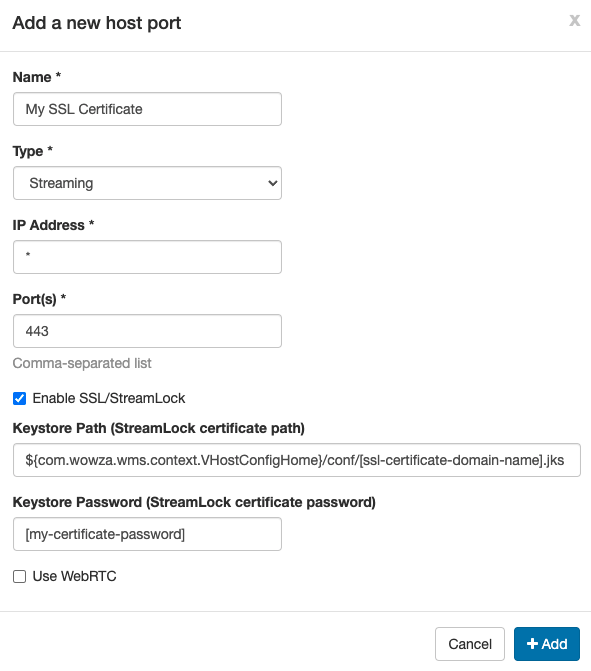
- Configure the host port by providing the following information and then click Add:
- Name – Enter a unique name for your certificate.
- Type – Select Streaming.
- IP Address – Enter an asterisk (*) to allow listening for traffic on all network interfaces or specify the IP address of a specific network interface.
- Port(s) – Enter 443.
- Enable SSL/StreamLock – Select to enable Wowza Streaming Engine to use the certificate.
- Keystore Path – Specify the location of your certificate (.jks file) in the following format:
${com.wowza.wms.context.VHostConfigHome}/conf/[ssl-certificate-domain-name].jkswhere [ssl-certificate-domain-name] is the file name of the certificate, as in the following example:
${com.wowza.wms.context.VHostConfigHome}/conf/5ab4321c0d123.streamlock.net.jks
- Keystore Password – Enter the password you created when you downloaded your certificate.
- Use WebRTC – Select to enable the host port to support WebRTC signaling if you configured your application to publish or play WebRTC streams. This is required for WebRTC streaming.
- Name – Enter a unique name for your certificate.
- Click Save.
- Restart the virtual host to apply your changes.
Now you can test your setup to ensure you can connect to WSE with SSL/TLS.
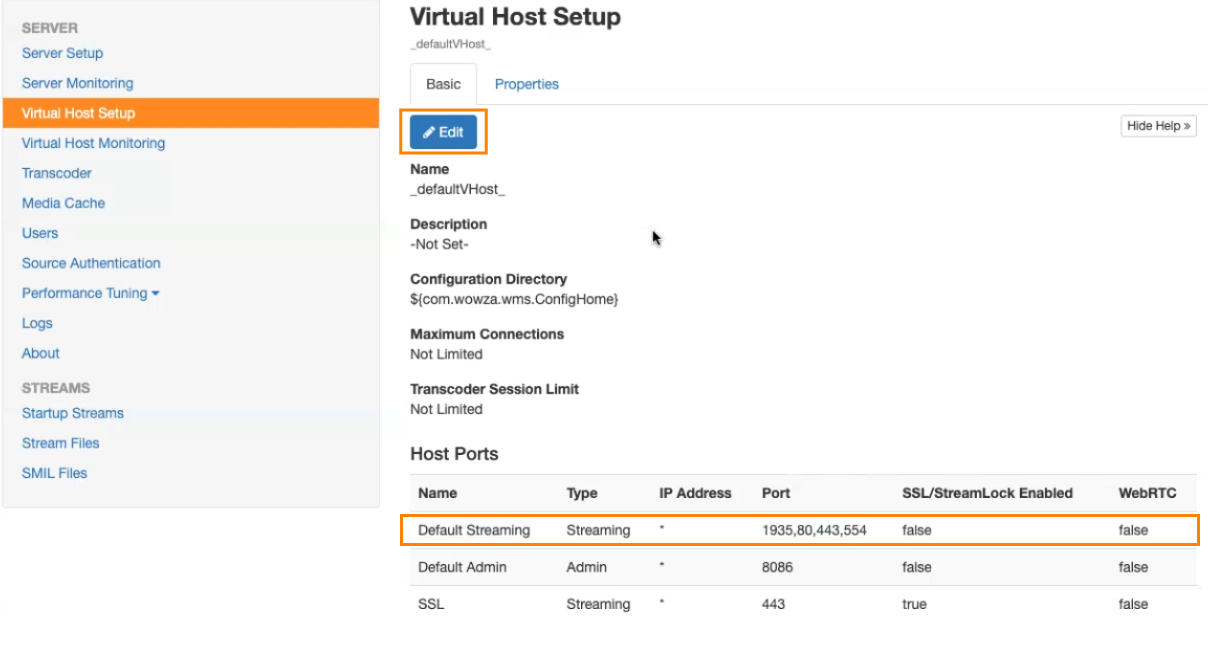
Note: In some instances when creating a StreamLock host port, port 443 is already claimed by the Default Streaming host port along with your StreamLock host port. In that case, remove port 443 from the Default Streaming host port field on the Virtual Host Setup page. Click Edit, Edit this host port, and delete 443 from the list of ports.
3. Test the SSL/TLS connection
Run an OpenSSL command to quickly confirm that you configured your SSL/TLS connection with Wowza Streaming Engine correctly.
- Open a Terminal window and execute one of the following OpenSSL commands, where [ssl-certificate-domain-name] is the domain name of the certificate.
- Test the SSL/TLS connection to the server:
openssl s_client -connect [ssl-certificate-domain-name]:443
- Test the SSL/TLS connection to the server and display the certificate contents:
openssl s_client -showcerts -connect [ssl-certificate-domain-name]:443
- Test the SSL/TLS connection to the server:
- Verify that you get a response that begins with CONNECTED and references the certificate.
We recommend also testing your complete workflow with playback of a stream with a secure playback URL and the player of your choice. In the playback URL, your SSL/TLS certificate domain is used as the address.